
The In-Place Archive feature enables CrashPlan to protect Microsoft Exchange Online archive mailbox data. Before enabling the feature in a backup policy, complete the required licensing and Microsoft consent configuration.
The setup consists of three main stages:
Generate the license → Grant Microsoft consent → Enable In-Place Archive in Policy Management
For existing CrashPlan for Microsoft 365 Exchange customers, the current license does not support the new In-Place Archive feature; therefore, customers must obtain and apply a new license that includes the In-Place Archive entitlement before granting consent and enabling the feature in Policy Management.
1. Generate a license for In-Place Archive
The In-Place Archive feature must first be included in the customer's CrashPlan license.
Open the CrashPlan license-generation interface.
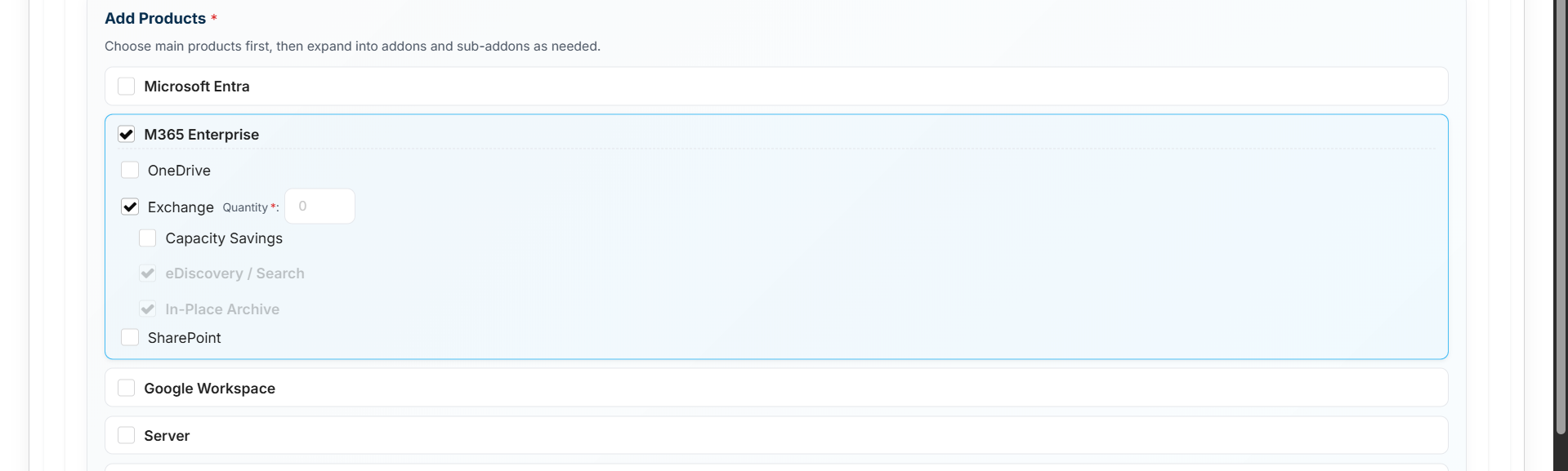
Navigate to Add Products.
Select M365 Enterprise.
Select Exchange.
Enter the required Exchange Quantity.
Under Exchange, verify that In-Place Archive is selected.
In-Place Archive is displayed as an Exchange sub-feature and is available when the corresponding Exchange product entitlement is included.
2. Grant Microsoft Consent
After the In-Place Archive entitlement is available, grant the required Microsoft permissions so that CrashPlan can access and protect archive mailbox data.
Sign in to the CrashPlan Portal.
Navigate to the Microsoft 365 configuration for the required tenant.
Select the option to Grant Consent.
Sign in with the appropriate Microsoft administrator account.
Review the permissions requested by CrashPlan.
Select Accept to grant consent.
Return to the CrashPlan Portal.
Verify that consent has been granted successfully.
Complete the consent process before enabling In-Place Archive backup in a policy. CrashPlan requires the appropriate Microsoft permissions to access the archive mailbox data.
3.Enable In-Place Archive in Policy Management
In the CrashPlan Platform, navigate to Policy Management.
Open the applicable Exchange policy.
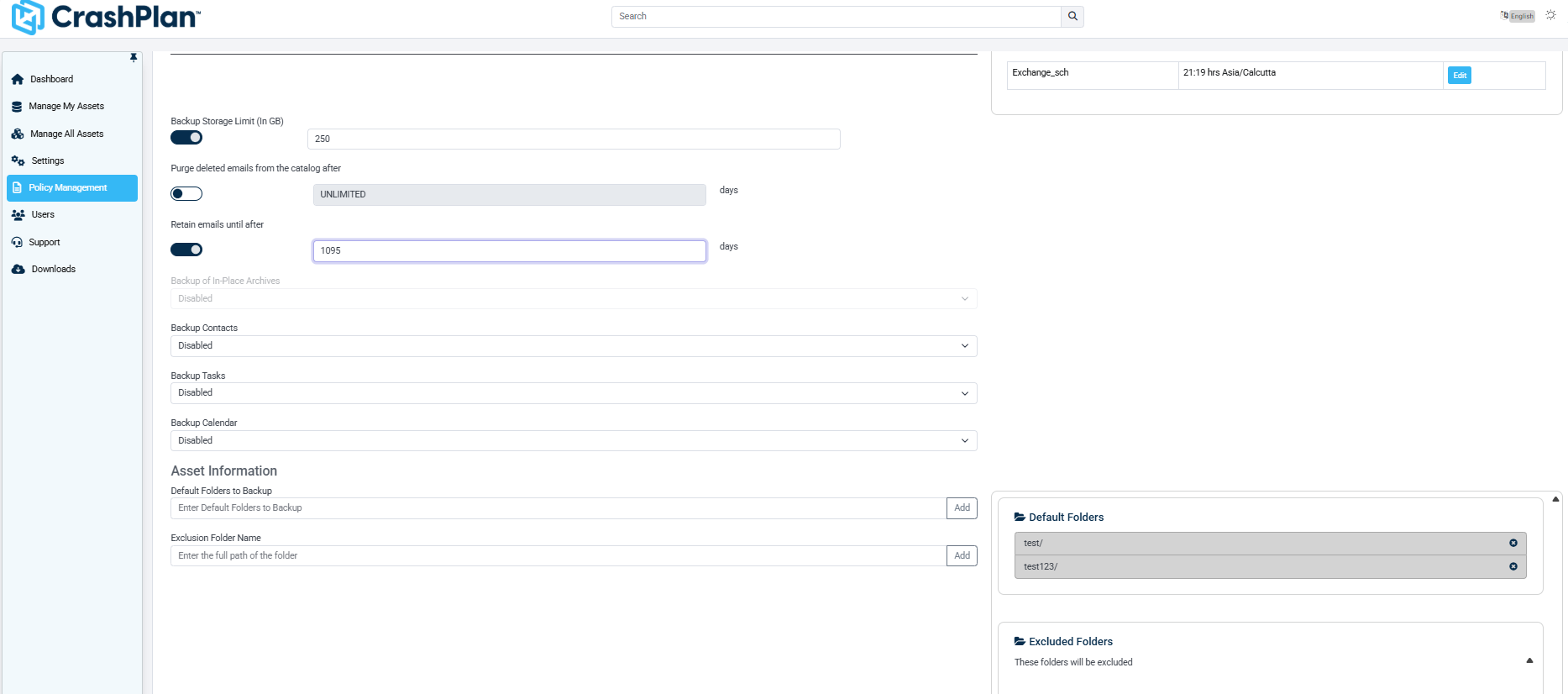
Locate Backup of In-Place Archives.
Enable the required In-Place Archive backup option.
Save the policy.
If Backup of In-Place Archives is unavailable or disabled, first verify that the newly generated license containing the In-Place Archive entitlement has been applied. Also verify that the required Microsoft consent has been granted.
In-Place Archive also supports Capacity Savings, enabling customers to optimize Exchange storage while protecting archived mailbox data with CrashPlan.