
Use the Manage All Assets page to view, monitor, and perform actions on all backed-up assets across workloads such as Google Mail and Google Drive.
Log in to the CrashPlan Admin Console.
From the left navigation pane, click Manage All Assets.
Select the required workload tab:
Google Mail
Google Drive
Review the asset summary displayed at the top.
Example: Total Google Drive Assets: 14
Use the Search for Assets field to quickly locate a specific asset by email address or name.
Review asset details in the asset list, including:
Asset Name
Asset ID
User Email
Backup Status
Last Backup Timestamp
Click on an asset name to open and browse its backed-up contents.
Use the available actions at the top-right for bulk management:
Manage Assets in Bulk – Perform actions on multiple assets simultaneously. For more information, see Managing Assets in Bulk.
Export Assets – Download the asset inventory for reporting or auditing. For more information, see Exporting Assets.
Click the More Options menu (three-dot icon) beside an asset to perform asset-specific actions.
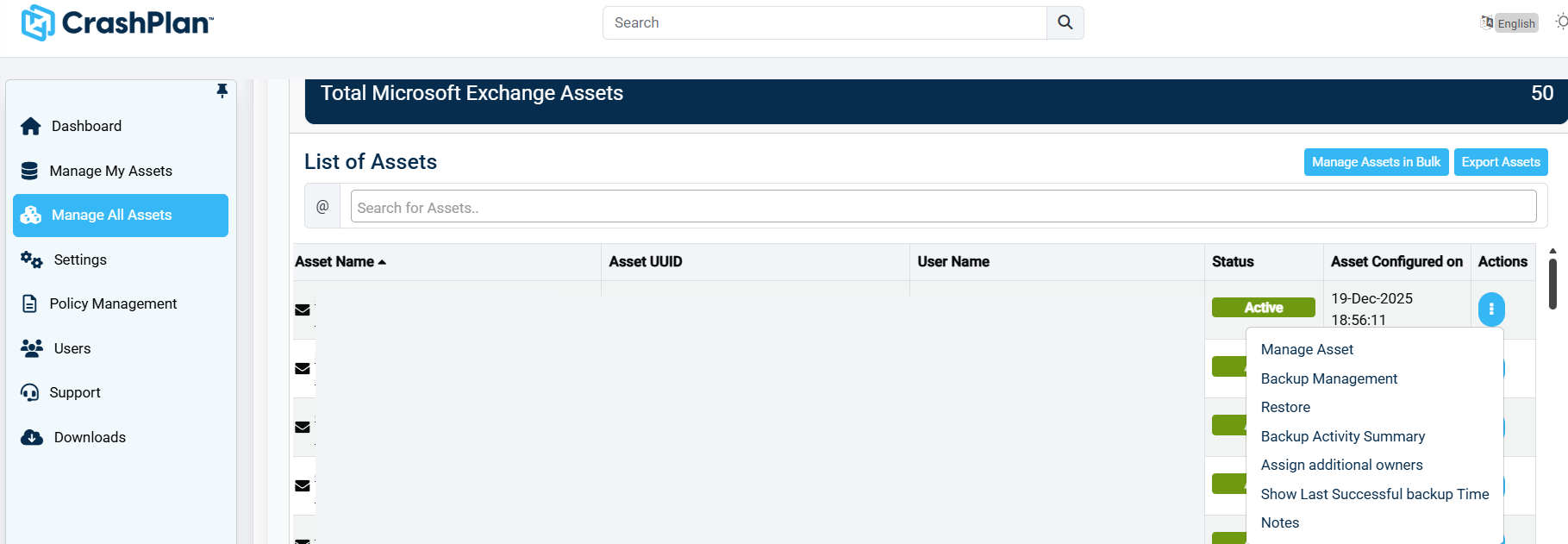
Use the Actions menu in the Manage All Assets page to perform administrative tasks on an individual asset.
From the left navigation pane, click Manage All Assets.
Select the Google mail workload tab to view all assets.
Locate the required asset from the List of Assets table.
Use the Search for Assets field to quickly find a specific asset.
In the Actions column, click the three-dot menu (⋮) next to the asset. Select one of the available actions:
Manage Asset - Opens the asset details page where you can browse mailbox content, review backup points, and manage the asset.
Backup Management - Configure or update backup settings, policies, and schedules for the selected asset.
Restore - Restore mailbox data such as emails, folders, or items from available backup snapshots.
Backup Activity Summary - View backup history, status, and recent backup activity for the asset.
Assign additional owners - Add one or more users as additional owners for the asset to provide delegated access.
Show Last Successful Backup Time - Displays the timestamp of the most recent successful backup.
Notes - Add or view administrative notes associated with the asset.
The selected asset action is applied, allowing administrators to manage backup, restore, ownership, and monitoring tasks for individual Google mail assets.
Use the scroll bar or pagination controls to navigate through additional assets.