
The Manage Assets in Bulk screen in the CrashPlan platform allows administrators to perform bulk operations such as blocking, unblocking, or deleting multiple assets simultaneously using Excel import files.
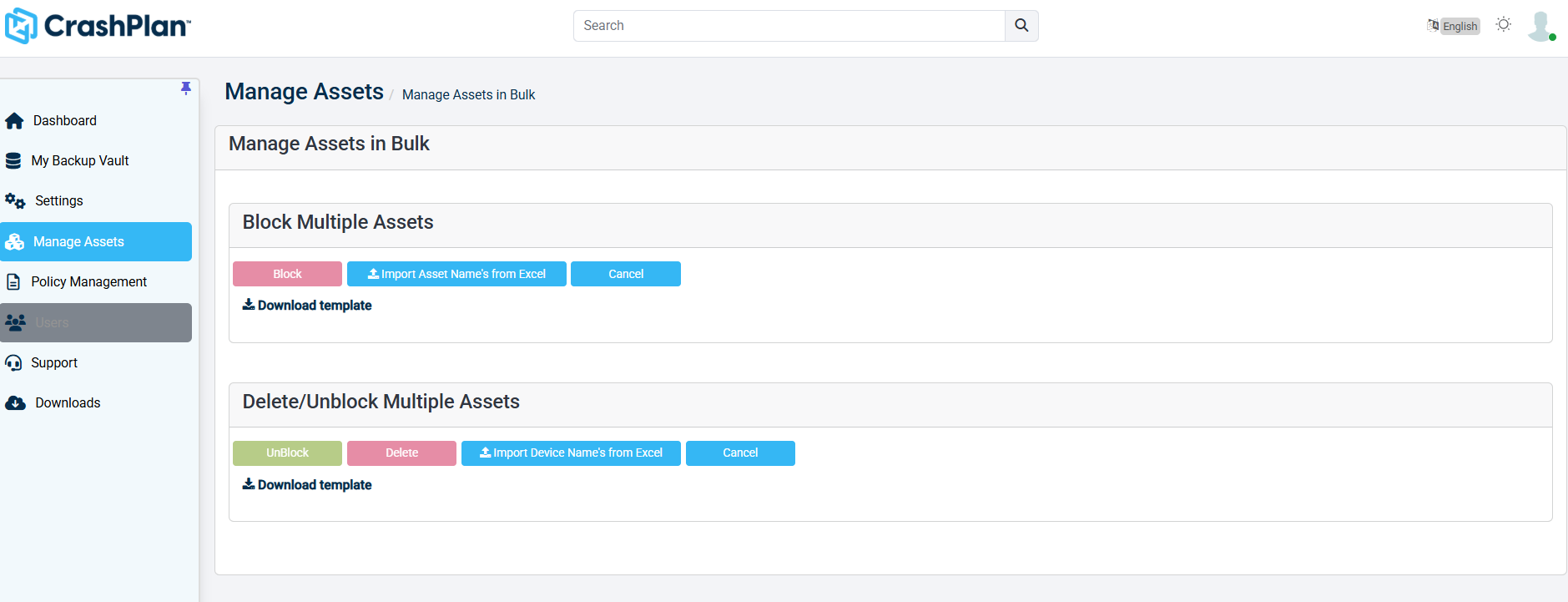
Blocking Multiple Assets
Use this section to block multiple assets in a single operation.
Log in to the CrashPlan Administration Portal.
Navigate to Manage Assets → Manage Assets in Bulk.
In the Block Multiple Assets section, click Download template.
Open the downloaded Excel template.
Enter the required asset names in the template file.
Save the completed Excel file.
Click Import Asset Name's from Excel.
Browse and select the completed Excel template file.
After the file upload is completed, click Block.
The selected assets are blocked successfully.
To exit without making changes, click Cancel.
Deleting or Unblocking Multiple Assets
Use this section to delete or unblock multiple assets in bulk.
In the Delete/Unblock Multiple Assets section, click Download template.
Open the downloaded Excel template.
Enter the required device or asset names in the template.
Save the Excel file.
Click Import Device Name's from Excel.
Browse and upload the completed Excel template.
Perform one of the following actions:
Click UnBlock to remove restrictions from the selected assets.
Click Delete to permanently remove the selected assets from the platform.
Confirm the action if prompted.
To cancel the operation without applying changes, click Cancel.