
Use the Manage All Assets page to view, monitor, and perform actions on all the products backed-up on CrashPlan Platform.
Log in to the CrashPlan Admin Console.
From the left navigation pane, click Manage All Assets.
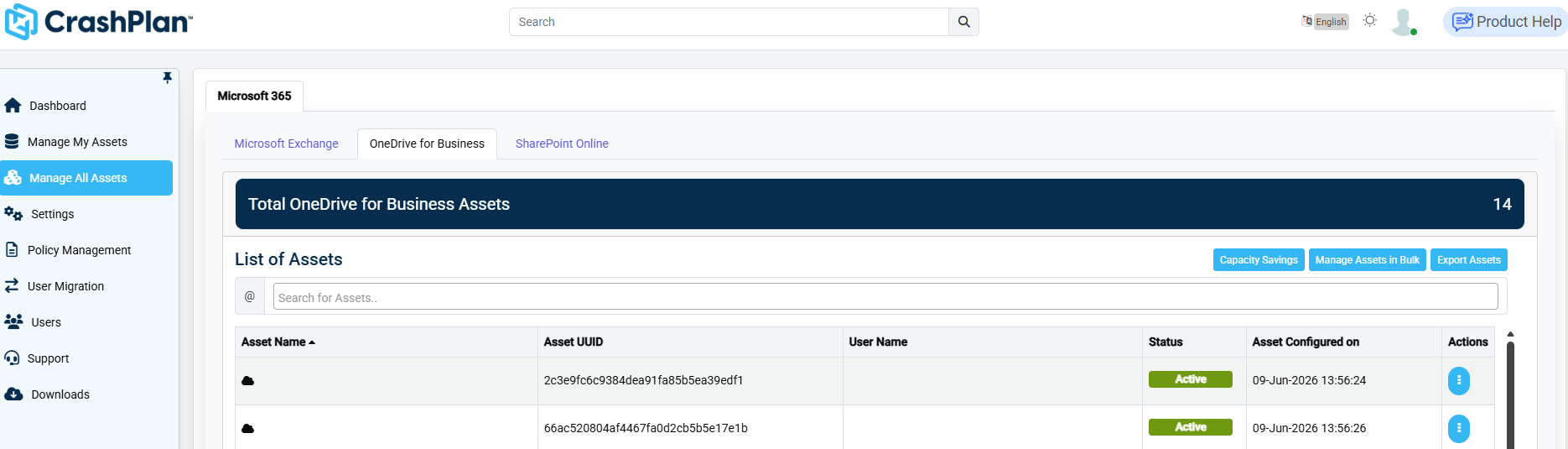
Select the required workload tab. For example:
Microsoft Exchange
OneDrive for Business
SharePoint Online
Review the asset summary displayed at the top.
Example: Total OneDrive for Business Assets: 14
Use the Search for Assets field to quickly locate a specific asset by email address or name.
Review asset details in the asset list, including:
Asset Name
Asset ID
User Email
Backup Status
Last Backup Timestamp
Click on an asset name to open and browse its backed-up contents.
Use the available actions at the top right of the list of assets:
Capacity Savings – View and manage storage optimization opportunities. For more information, see Capacity Savings for Microsoft 365.
Manage Assets in Bulk – Perform actions on multiple assets simultaneously. For more information, see Managing Assets in Bulk.
Export Assets – Download the asset inventory for reporting or auditing. For more information, see Exporting Assets.
Click the More Options menu (three-dot icon) beside an asset to perform asset-specific actions.
Use the scroll bar or pagination controls to navigate through additional assets.