
You can view running restore jobs for an asset from Manage My Assets. This helps you determine whether a restore is already in progress before starting another restore job.
The restore jobs you can view are determined by your existing asset-level permissions. You can view restore jobs for assets that you own, assets for which you initiated a restore, or assets that you are authorized to access.
To view running restore jobs:
Go to Manage My Assets.
Locate the asset for which you want to check the restore activity.
In the Action column, click View running jobs.
Review the running restore job information for the selected asset.

Where available, the restore job details include:
Field | Description |
|---|---|
Restore status | Displays the current status of the restore job. |
Source | Displays the source of the restore operation. |
Destination | Displays the restore destination, when you are authorized to view it. |
Start time | Displays when the restore job was started. |
Progress | Displays the current progress of the restore job, when available. |
Regular users can view only restore jobs associated with assets they own, restores they initiated, or assets they are permitted to access. The View running jobs option does not provide access to the administrator dashboard or grant additional permissions.
This capability is available across supported products where restore activity is available.
When you initiate a restore for an asset that already has one or more restore jobs in progress, the Confirm Additional Restore dialog appears. This helps prevent unintentionally starting multiple restore jobs for the same asset.
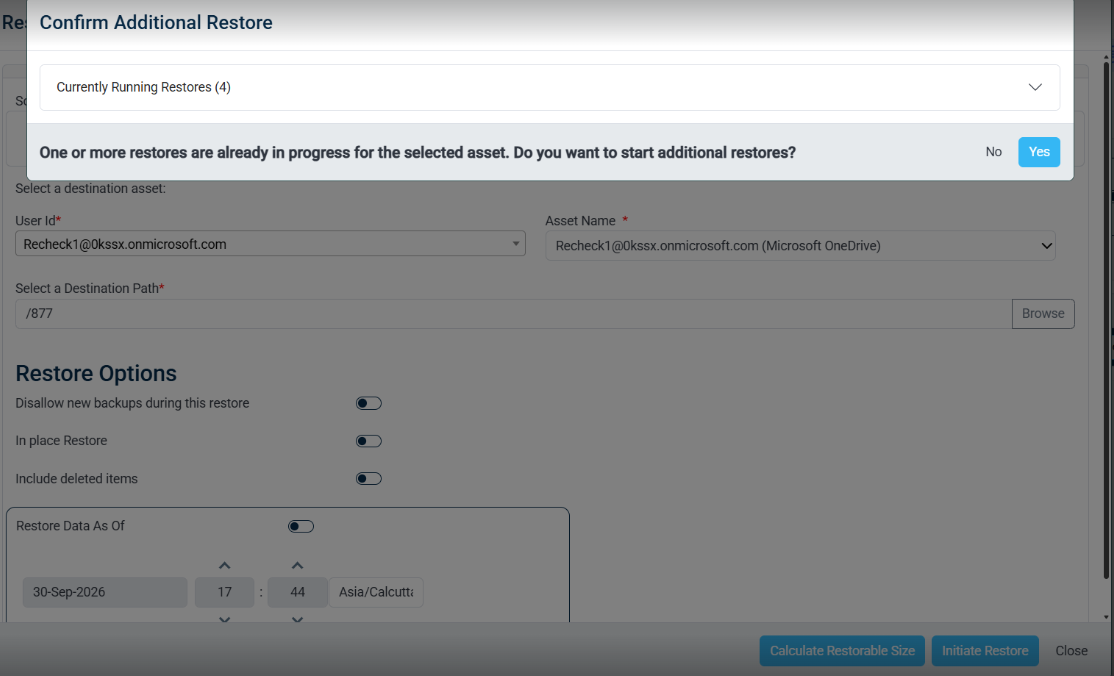
The dialog displays the number of active restores under Currently Running Restores. Expand this section to review the existing restore jobs. For each running restore, the available information includes the restore start time, source, destination, and current restore status.
To continue:
Review the Currently Running Restores information.
Determine whether you want to start an additional restore for the selected asset.
Select one of the following:
Yes — Confirms that you want to proceed. The new restore job is initiated.
No — Cancels the additional restore. No new restore job is created.
Note: The warning appears when a restore is already running for the selected asset and applies to both regular users and administrators.