
To add a new server to CrashPlan, you must first generate an activation token. This token is used during the installation of the CrashPlan Backup Agent to securely register the server with your CrashPlan environment.
Generating the Activation Token
If no activation token exists for a server, generate one before installing the CrashPlan Backup Agent. The activation token is required to securely register the server with the CrashPlan platform.
Log in to the CrashPlan Portal using your administrator credentials.
Navigate to Server Backup → Manage All Assets section, click Add Server(s). The Manage Server Activation Token dialog box appears.
If no activation token exists, the Manage Server Activation Token dialog displays the message: "There is no token generated. Do you want to generate a new token now?"
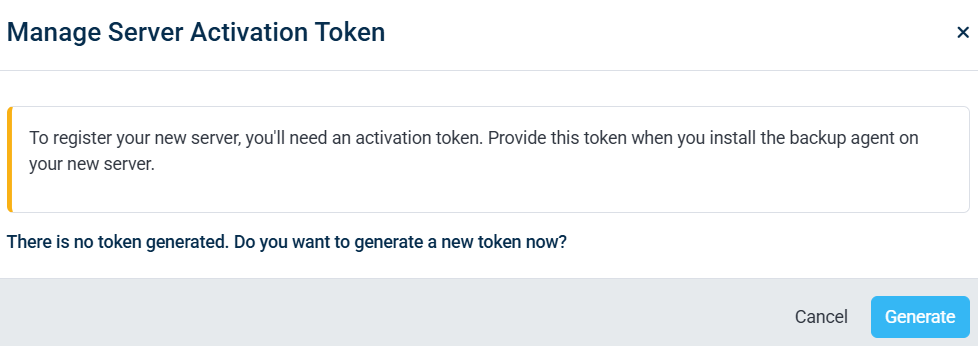
Click Generate.
CrashPlan generates a new activation token that you can use during the server backup agent installation.
Copy the activation token and provide it when prompted during the installation of the CrashPlan Backup Agent on the server you wish to backup.
A new activation token is generated and associated with the selected server. The token remains valid until its expiration time and can be viewed, copied, extended, or revoked from the Manage Server Activation Token dialog.
Registering a New Server for Backup
Log in to the CrashPlan Portal using your administrator credentials.
Navigate to Server Backup → Manage All Assets section, click Add Server(s). The Manage Server Activation Token dialog box appears.
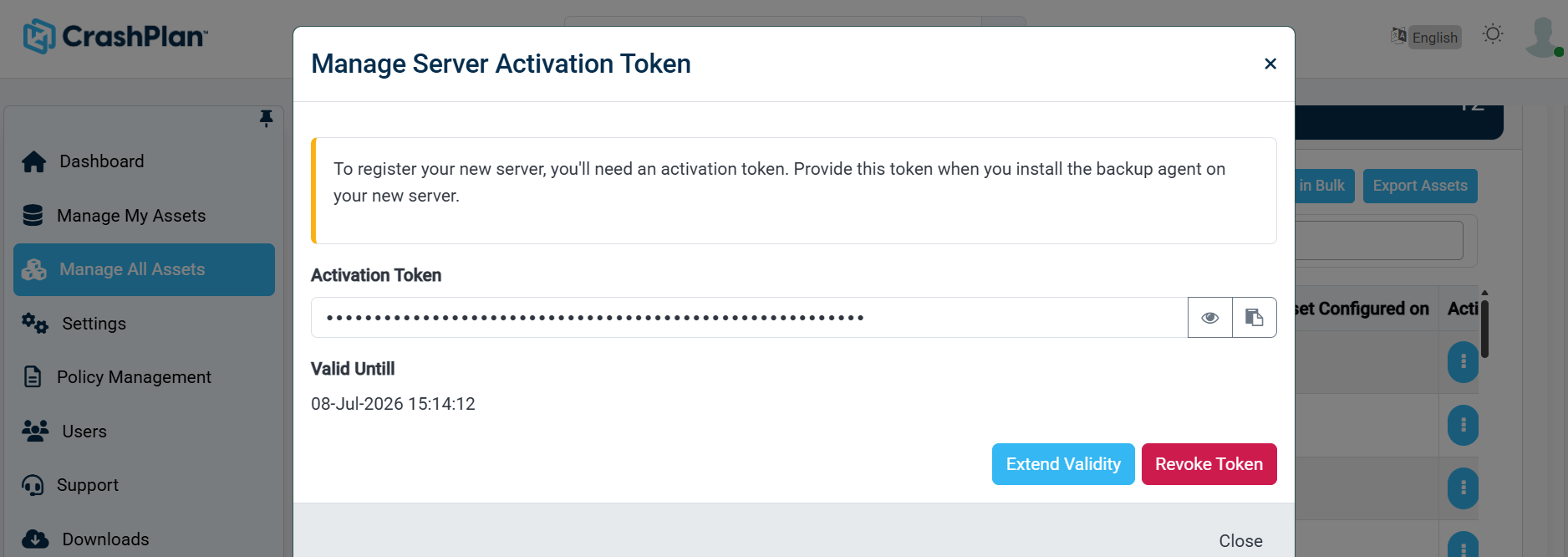
Enter the Activation Token generated.
Review the Activation Token.
Click the Show (👁) icon to reveal the token, if required.
Click the Copy (📋) icon to copy the token to your clipboard.
Note the Valid Until date and time to ensure the token is used before it expires.
Provide the activation token during the installation of the CrashPlan Backup for Server on the target server.
Optional actions
Extend Validity – Extends the expiration time of the current activation token, if any additional time is needed before the installation. An email will be sent with the expiration time and relevant details.
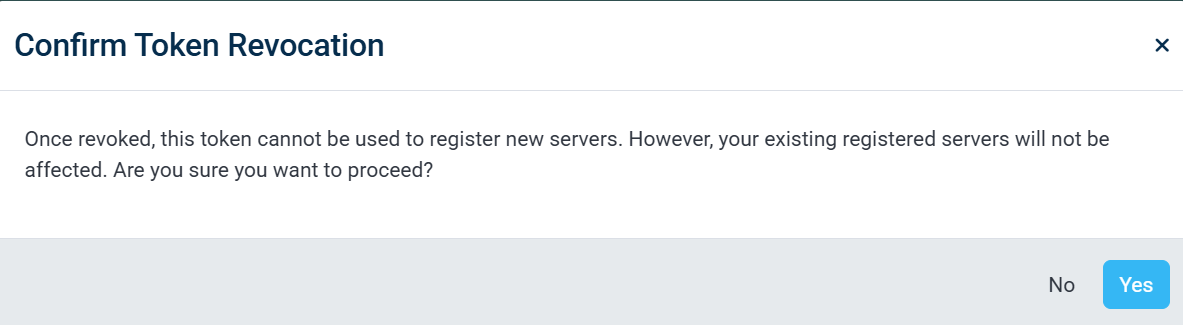
Revoke Token – Invalidates the current activation token. After revocation, the token can no longer be used to register a server, and a new token must be generated.
After the backup agent is installed using the activation token, the CrashPlan Backup for Servers is securely registered with CrashPlan and appears in the Manage All Assets page, where you can assign policies and monitor backup status.