
The Manage All Assets screen allows administrators to view, configure, monitor, and manage all server backup assets in the CrashPlan platform.
To access the Manage All Assets screen:
Log in to the CrashPlan Administration Portal.
From the left navigation pane, click Manage All Assets.
The List of Assets screen appears, displaying all configured server backup assets.
Managing the Server
To modify or update server configuration details, follow the below steps:
Click the three-dot menu beside the asset.
Select Manage Server.
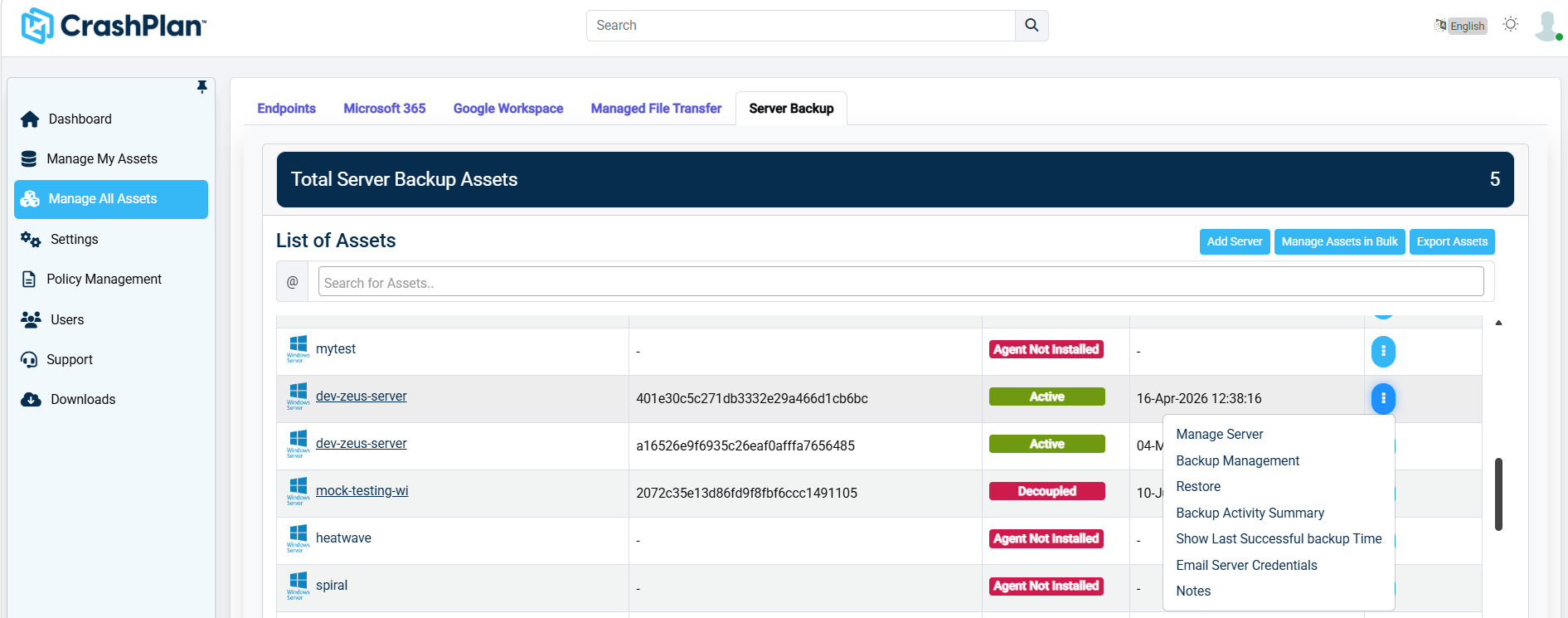
Update the required server settings.
Click Save to apply the changes.
Backup Management
Used to configure or manage backup settings and schedules for the selected asset.
Open the asset action menu.
Select Backup Management.
Configure backup schedules, retention settings, or backup sources as required.
Save the configuration.
Restore
Used to recover backed-up data from the selected server asset.
Open the asset action menu.
Select Restore.
Browse and select the required backup data.
Choose the restore destination.
Start the restore operation.
Backup Activity Summary
Displays backup activity and operational history for the selected asset.
Open the asset action menu.
Select Backup Activity Summary.
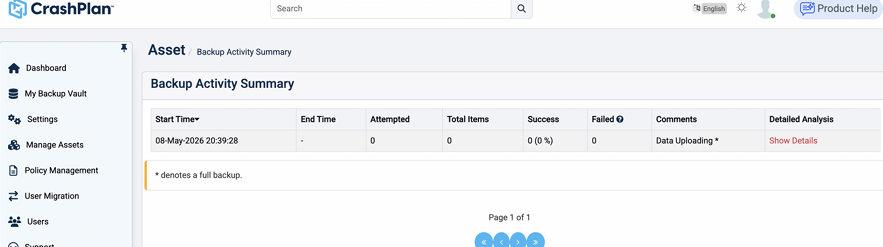
Review backup job history, status, and operational details.
Show Last Successful Backup Time
Displays the timestamp of the most recent successful backup operation.
Open the asset action menu.
Select Show Last Successful Backup Time.
Review the displayed backup completion time.
Email Server Credentials
Sends the authentication credentials for the selected server to the registered email address.
Open the asset action menu.
Select Email Server Credentials.
Confirm the email action if prompted.
The credentials email is sent to the configured recipient.
Notes
Allows administrators to add or manage notes related to the selected asset.
Open the asset action menu.
Select Notes.
Enter or update the required notes.
Save the notes.