
After the server asset has been created, follow the steps below to download and install the Server Backup Agent from the CrashPlan Platform to the server you wish to backup.

Log in to the CrashPlan portal from the Windows server using a web browser.
Navigate to the User Profile → Download Agent.
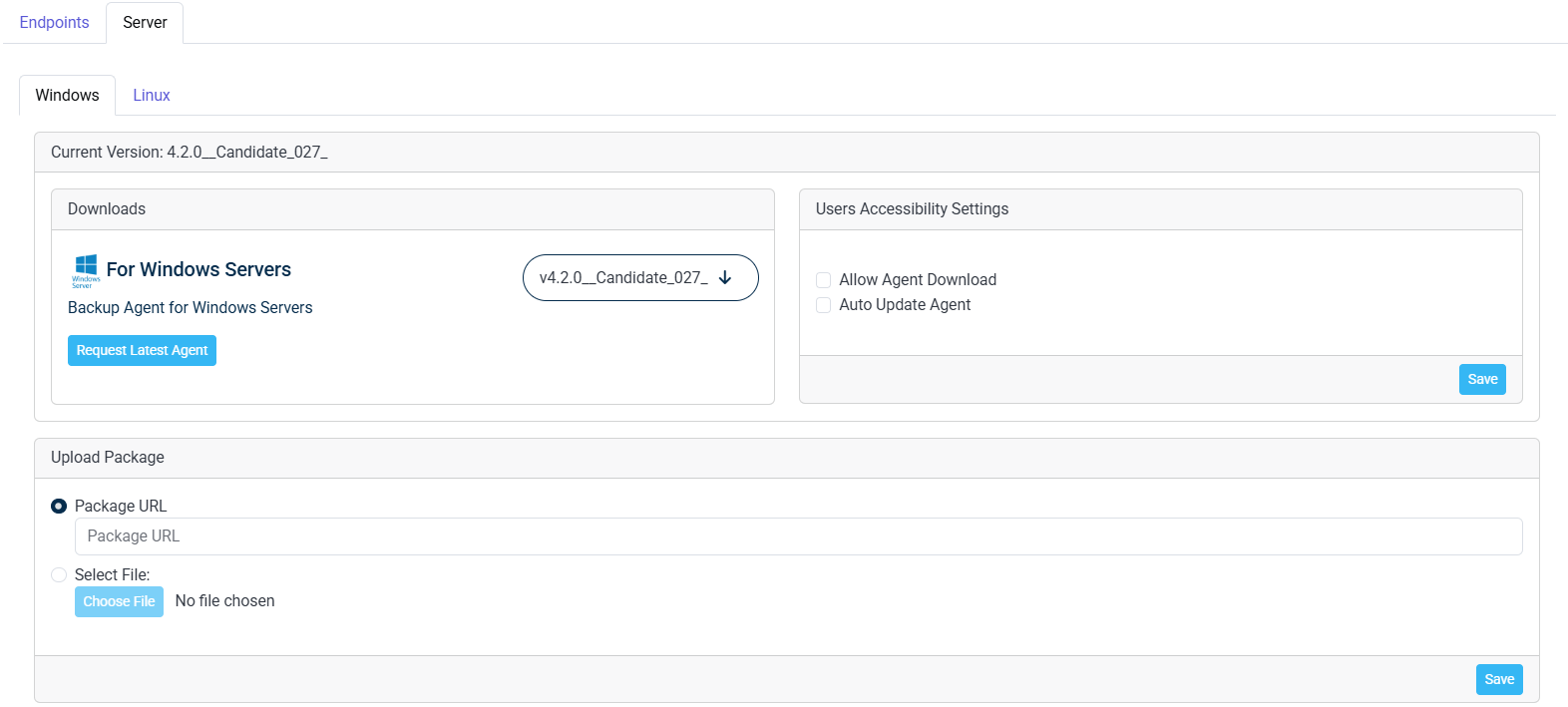
On the Settings page for Server, select Windows tab.
Click Request Latest Agent to download the latest version of the agent. For more information, see Downloading and Installing the Server Backup Agent.
In the Downloads section, locate For Windows Servers.
Click the Download icon next to the displayed agent version.
Once the download is complete, locate the downloaded installer (.exe file) on the Windows server.
The Current Version is displayed at the top of the page which indicates the agent version currently available for download.
Double-click the installer file to start the installation. Follow the installation wizards, accepting the License Agreement, and completing the CrashPlan Backup for Servers configuration setup process.
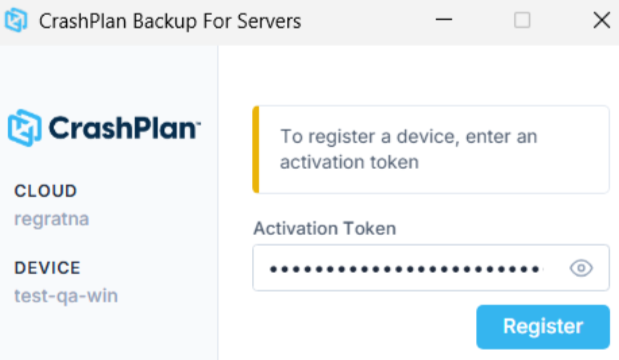
Wait a few minutes for the Activation Token screen to appear.
Enter the generated Activation Token received in the email to complete the agent configuration and registration process.
Do not close the installer or restart the server unless prompted by the installation workflow.
Click Register. After your system is registered, assign a policy from the CrashPlan Platform, and the backup will start according to the schedule. CrashPlan Backup for Servers is installed on your server.
If the backup needs to be suspended temporarily for any server, select the No Backup policy against that server name and click Apply to confirm the policy change.
Requesting the Latest Windows Server Agent
If you need to obtain the latest available agent version:
On the Windows tab, click Request Latest Agent.
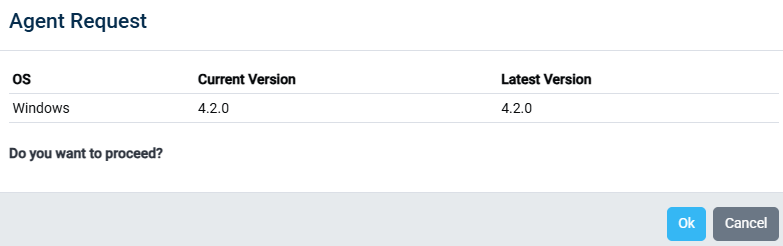
The Agent Request dialog displays the current and latest available versions.
Review the versions shown for Windows.
Click OK to proceed with the request or click Cancel to close the dialog.
If the Current Version and Latest Version are the same, no newer agent version is currently available.
Log in to the CrashPlan portal from the Linux server using a web browser.
Navigate to the User Profile → Download Agent.
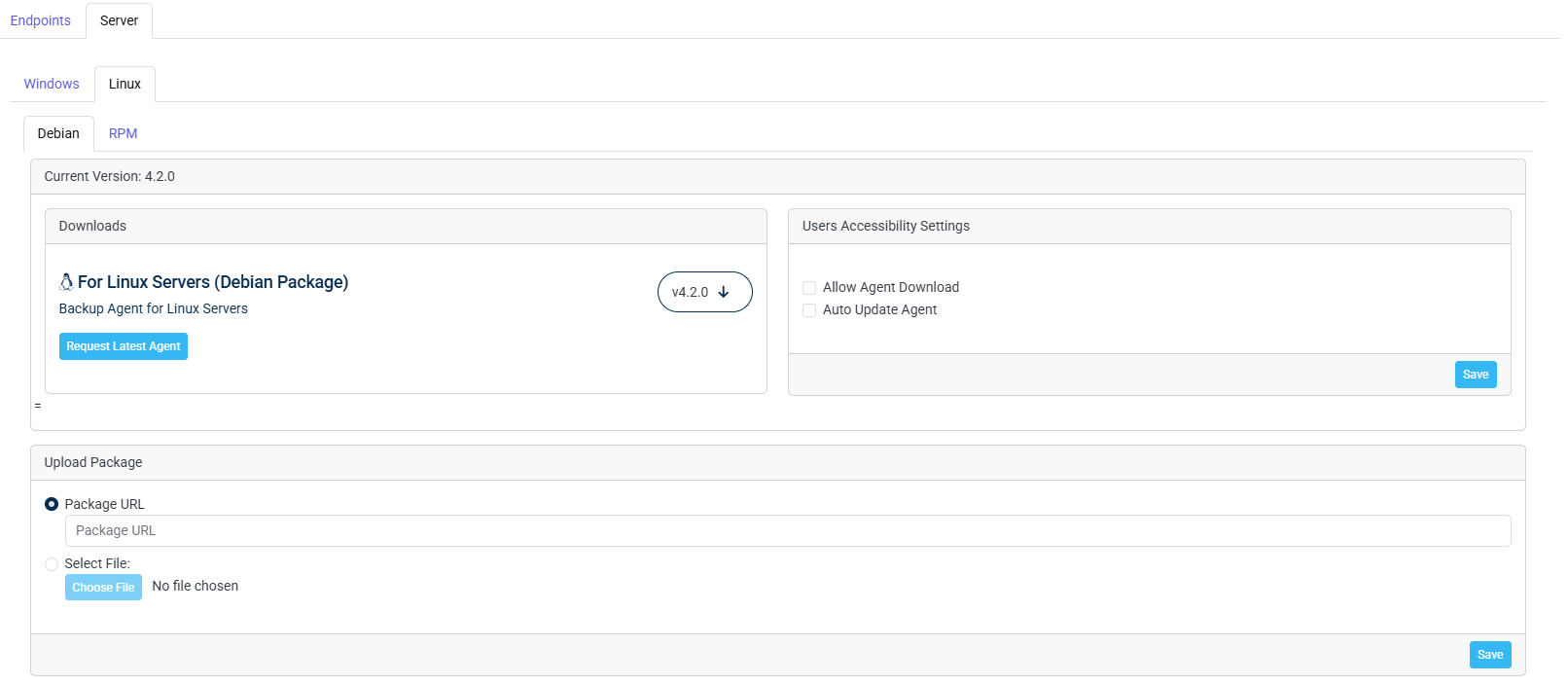
On the Settings page for Server, select Linux tab.
Select the package type that matches your Linux distribution:
Debian — for Debian-based Linux systems.
RPM — for RPM-based Linux systems.
Click Request Latest Agent. For more information, see Requesting the Latest Linux Server Agent.
In the Downloads section, locate the appropriate Linux Server Agent.
Click the Download icon next to the displayed agent version.
The Current Version is displayed at the top of the page which indicates the agent version currently available for download.
Once the download is complete, locate the downloaded installer (.exe file) on the Linux server.
Double-click the installer file to start the installation. Follow the installation wizards, accepting the License Agreement, and completing the CrashPlan Backup for Servers configuration setup process.
Wait a few minutes for the Activation Token screen to appear.
Enter the generated Activation Token received in the email to complete the agent configuration and registration process.
Do not close the installer or restart the server unless prompted by the installation workflow.
Click Register. After your system is registered, assign a policy from the CrashPlan Platform, and the backup will start according to the schedule. CrashPlan Backup for Servers is installed on your server.
If the backup needs to be suspended temporarily for any server, select the No Backup policy against that server name and click Apply to confirm the policy change.
Requesting the Latest Linux Server Agent
If you need to obtain the latest available agent version:
On the Linux tab, click Request Latest Agent.
Review the Current Version and Latest Version displayed in the Agent Request dialog.
Click OK to submit the request or click Cancel to close the dialog.
When the current version appears as NA, click Request Latest Agent to check for the latest available agent.
If the Current Version and Latest Version are the same, no newer agent version is currently available.
Allowing Users to Download the Agent
Administrators can control whether users can download the agent from the Users Accessibility Settings section.
Select Allow Agent Download to allow users to download the server agent.
Select Auto Update Agent to enable automatic agent updates.
Click Save to apply the settings.
The downloaded Linux Server agent can then be installed on the Linux server you want to protect.
Uploading a Server Agent Package
You can upload a Server Backup agent package using either a package URL or a local file.
In the Upload Package section, select one of the following options:
Package URL — Select this option to upload the agent package from a URL.
Select File — Select this option to upload an agent package stored locally.
For Package URL, enter the URL of the agent package in the Package URL field.
For Select File, click Choose File and select the agent package from your computer.
Click Save to upload the package.