
One Drive
This procedure enables administrators to configure archival rules for optimizing storage in Microsoft OneDrive by identifying and archiving low-activity files.
Log in to the CrashPlan console and navigate to: Policy Management → OneDrive for Business → Policy Configuration.
Click Create Policy.
In the policy settings, locate “Archive files from OneDrive for Business if” and enable the toggle.
Configure the archival eligibility conditions as required:
Set the OneDrive storage consumption threshold (%)
Specify the file inactivity duration (number of days since last modification)
Define the minimum file size (in MB)
Select the applicable conditions and configure their values.
All selected conditions are applied using AND logic, meaning a file must meet all enabled criteria to be eligible for archival
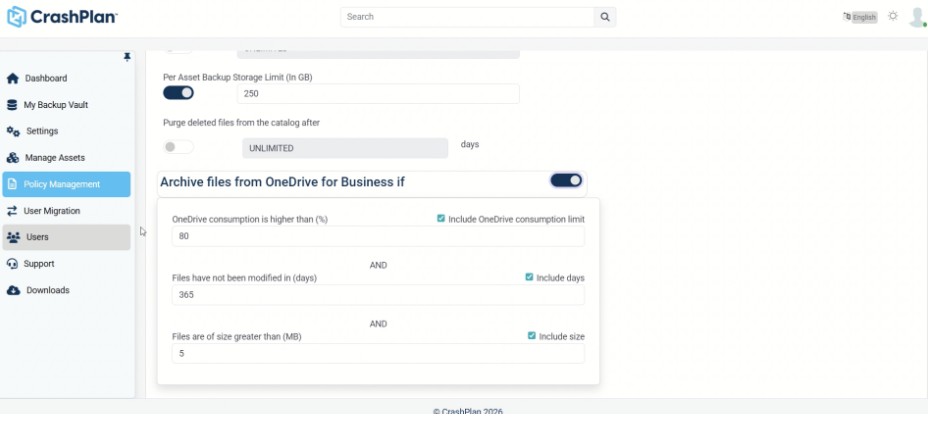
Example configuration:
OneDrive consumption > 80%
File not modified for > 365 days
File size > 5 MB
Save the policy.
Once applied, files that meet all configured conditions will be:
Archived to the CrashPlan backup tier
Replaced in OneDrive with lightweight stub (.URL) files
This process helps reclaim storage space while ensuring continued file visibility and the ability to restore content when needed.
SharePoint
This procedure enables administrators to define archival rules for optimizing storage in Microsoft SharePoint by identifying and archiving low-activity documents.
NOTE: Only Documents libraries are included, while SharePoint Pages, List, and essential Site contents are intentionally excluded to prevent any site rendering issues.
Log in to the CrashPlan console and navigate to: Policy Management → SharePoint Online Policies → Policy Configuration.
Click Create, Edit, or Clone Policy as required
Go to the General section.
Locate “Archive files from SharePoint Online if” and enable the toggle
Configure the archival eligibility conditions by selecting the applicable Include options:
Include sites consuming more than (%) of total SharePoint storage quota - Set the threshold for site-level storage usage
Include documents not modified for (days) - Define inactivity duration
Include documents larger than (MB) - Specify minimum file size
Enable the desired conditions using their respective Include selectors and configure values accordingly.
Only selected conditions are evaluated. If multiple conditions are enabled, they are applied using AND logic (all conditions must be met).
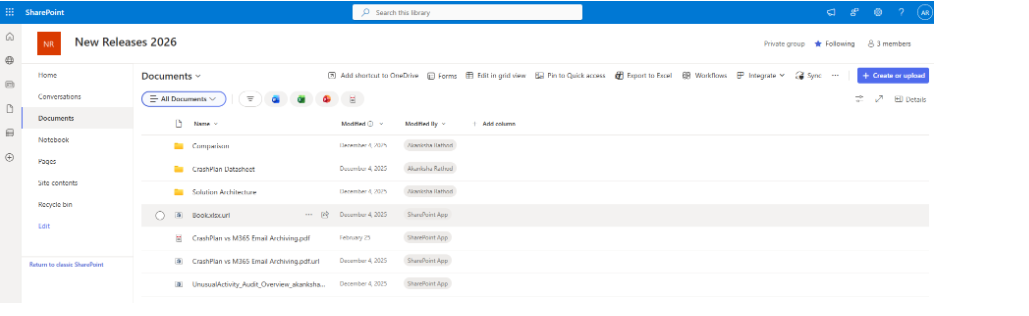
Example configuration:
Site storage consumption > 10%
Document not modified for > 365 days
Document size > 5 MB
Save the policy.
Once applied, documents that meet all selected conditions will be:
Archived to the CrashPlan backup tier
Replaced in SharePoint with lightweight stub (.URL) files
This configuration provides precise control over archival behavior while maintaining document visibility and recovery capability.
Unlike OneDrive, SharePoint uses tenant-pooled storage, so thresholds are evaluated per site against the total tenant storage rather than per-site limits—meaning even a low threshold (like 1%) can be significant in large tenants where a single site may consume substantial storage.
Microsoft Exchange
This procedure enables administrators to configure archival rules for optimizing storage in Microsoft Exchange by identifying and archiving older emails.
Log in to the CrashPlan console and navigate to: Policy Management → Microsoft Exchange → Policy Configuration.
Click Create Policy.
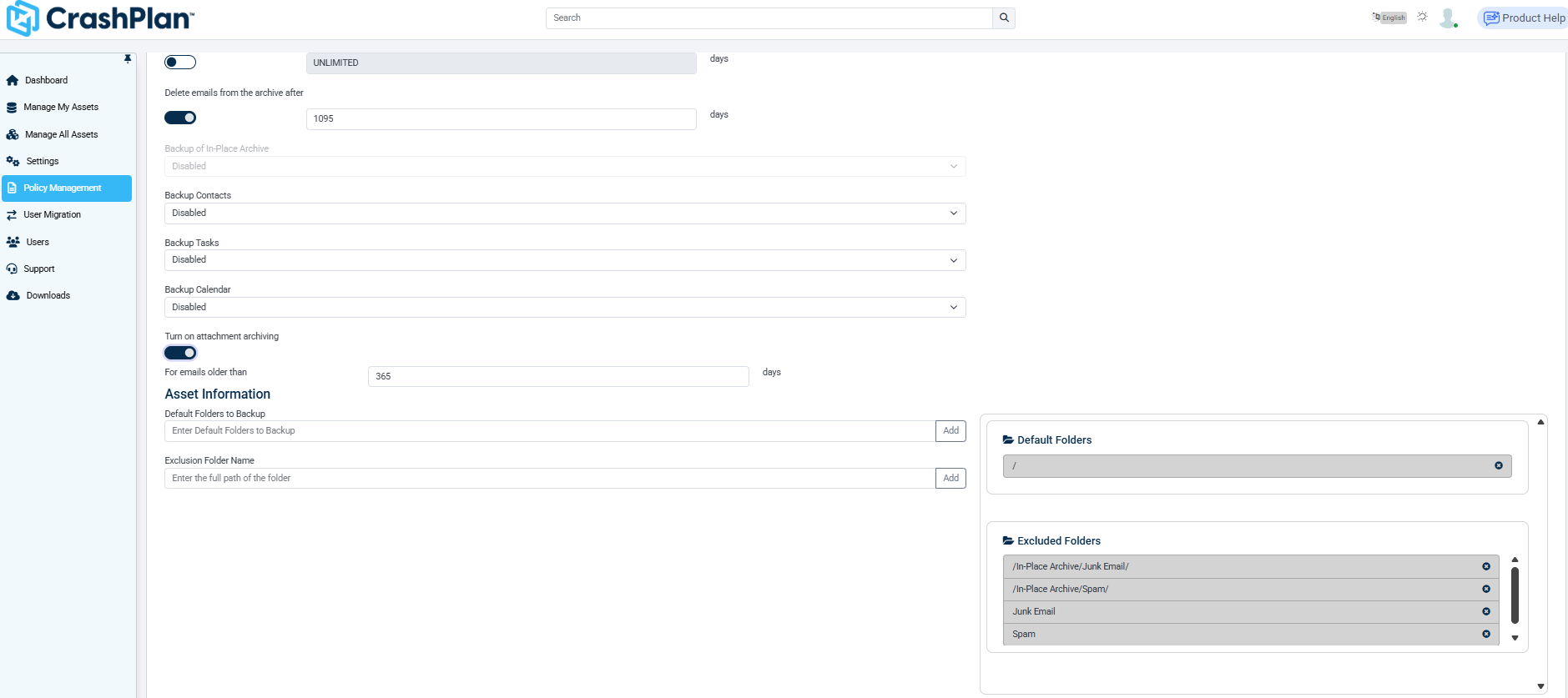
In the policy settings, locate Turn on attachment archiving and enable the toggle.
Configure the archival eligibility conditions as required: Set the "For emails older than (in days)" - Default value 365 days.
Select the applicable conditions and configure the values.
Save the policy.
Once applied, files that meet all configured conditions will be:
Archived to the CrashPlan backup tier
Replaced in Exchange with lightweight stub (.URL) files
This process helps reclaim storage space while ensuring continued file visibility and the ability to restore content when needed.