
This section provides procedures on executing Capacity Savings in OneDrive, Exchange, and SharePoint
OneDrive
This procedure outlines how to use the controlled execution framework for Capacity Savings in Microsoft OneDrive. This controlled execution approach ensures that administrators can validate impact through Dry Run before committing changes with Live Run, reducing risk and improving confidence in storage optimization.
Dry run will work only if the files are already backed up.
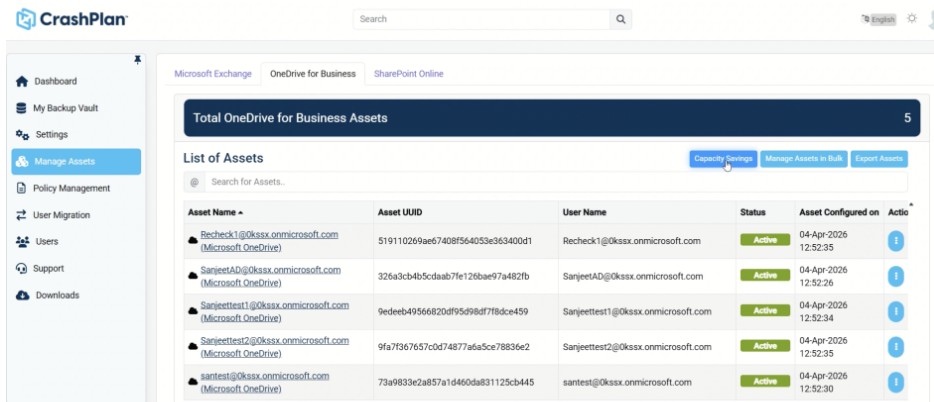
Log in to the CrashPlan console and navigate to: Manage Assets → OneDrive for Business → Capacity Savings
Review the configured archival policy to ensure eligibility conditions are correctly set.
Select the desired execution mode: Dry Run.
Choose Dry Run to simulate the archival process.
Review the results to:
Identify files eligible for archival
Estimate potential storage savings
No changes are made to files during Dry Run.
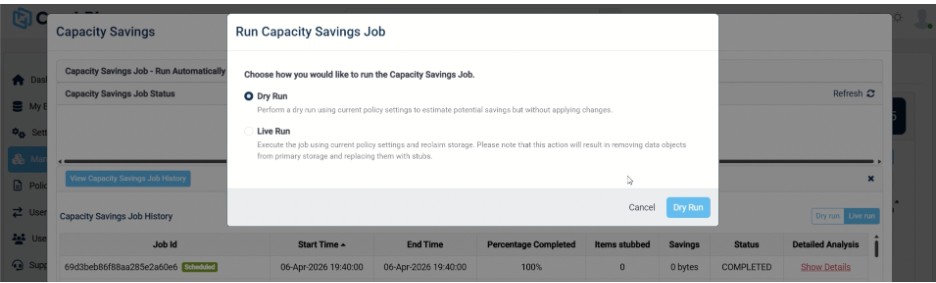
Analyze the Dry Run output and confirm that the results align with expected outcomes. If satisfied with the simulation, proceed to execution by selecting Live Run
Initiate Live Run to perform the actual archival process.
During Live Run process:
Eligible files are archived to the CrashPlan backup tier
Files in OneDrive are replaced with lightweight stub (.URL) files
Storage space is reclaimed
A confirmation dialog appears: “Please note that running this job will result in removing data objects from primary storage and replacing them with stubs.”
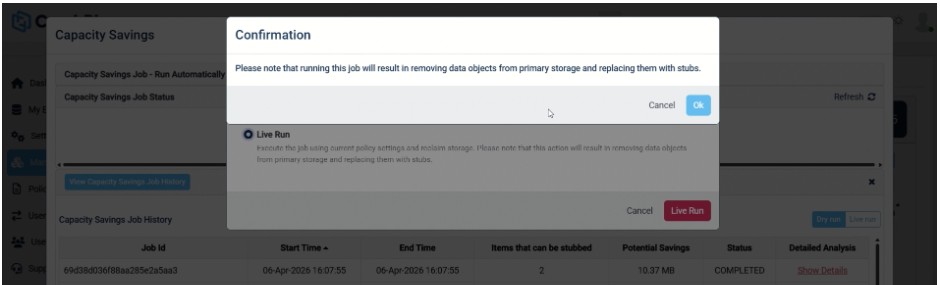
Monitor the execution status and verify completion within the portal. It is recorded in the Capacity Savings Job History table with a manual run indicator against the Job Id.
While a Job is Running:
Real-time job details such as Job Id, Start Time, Progress, and Savings are displayed
The Stop (Abort) Action becomes available to terminate the job.
Each Job includes Job Id, Manual/Scheduled tag, Live Run/Dry Run tag and Show Details link.
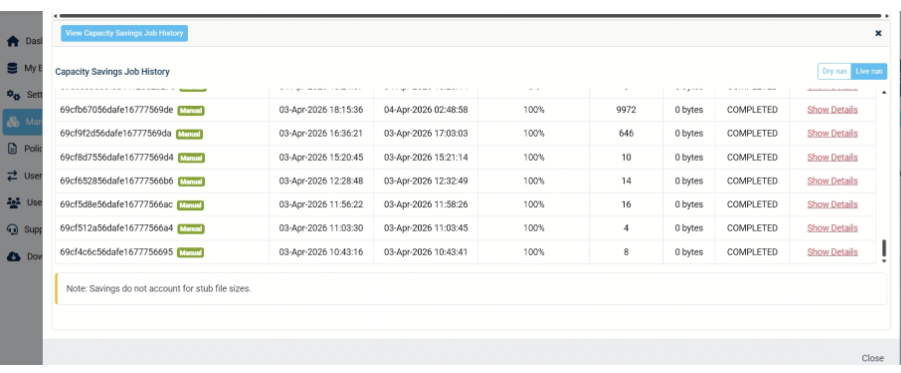
The note “Savings do not account for stub file sizes”, means that storage savings are calculated using the full size of the original files, without subtracting the negligible space used by the small stub files that replace them.
SharePoint
Use this procedure to configure, run, and monitor Capacity Savings in SharePoint Online:

Dry run will work only if the files are already backed up.
Navigate to Manage Assets → SharePoint Online → Capacity Savings.
Enable “Capacity Savings Job – Run Automatically” to run the job every 12 hours with no manual intervention.
Go to Capacity Savings Job Status to monitor execution:
Click Refresh to update progress
If no job is running, click Run Now to start one.
Choose the execution type when running manually:
Dry Run to estimate savings without making changes
Live Run to archive backed-up files and replace them with stub URLs
For a Dry Run, select Dry Run and click Dry Run to view eligible files and potential savings.
For a Live Run, select Live Run, confirm the prompt, and click Live Run to start archival.
During execution, track progress, file count, and savings in real time, and use Stop (Abort) if needed.
If a job is already running and Run Now is clicked, confirm stopping the current job before starting a new one.
After completion or abort, review results in Capacity Savings Job History and use Show Details for asset-level insights.
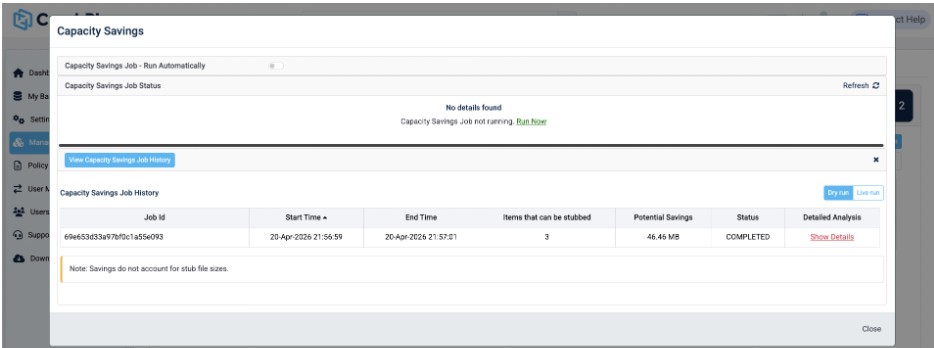
Use View Capacity Savings Job History to access past runs, including job status, timestamps, items processed, and savings.
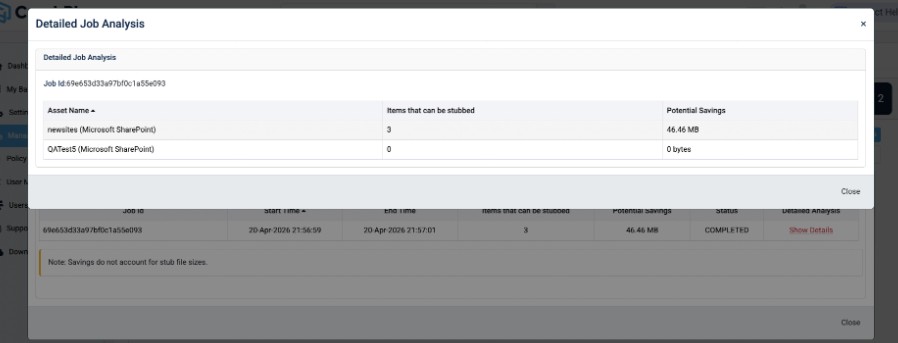
Savings are calculated based on original file sizes and do not include the minimal space used by stub files.
Microsoft Exchange
This procedure outlines how to use the controlled execution framework for Capacity Savings in Microsoft Exchange. This controlled execution approach ensures that administrators can validate impact through Dry Run before committing changes with Live Run, reducing risk and improving confidence in storage optimization.
Dry run will work only if the files are already backed up.
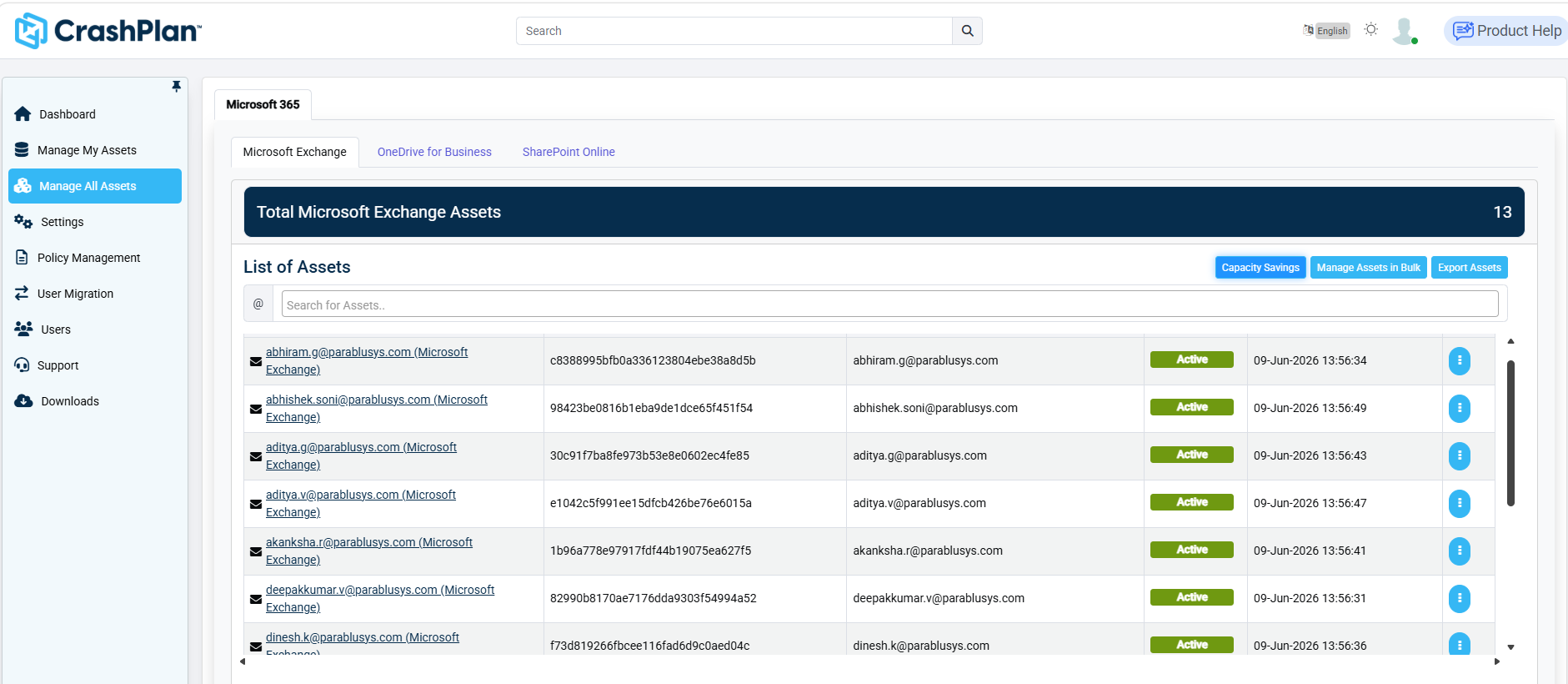
Log in to the CrashPlan console and navigate to: Manage All Assets → Microsoft Exchange → Capacity Savings
Review the configured archival policy to ensure eligibility conditions are correctly set.
Select the desired execution mode: Dry Run.
Choose Dry Run to simulate the archival process.
Review the results to:
Identify files eligible for archival
Estimate potential storage savings
No changes are made to files during Dry Run.
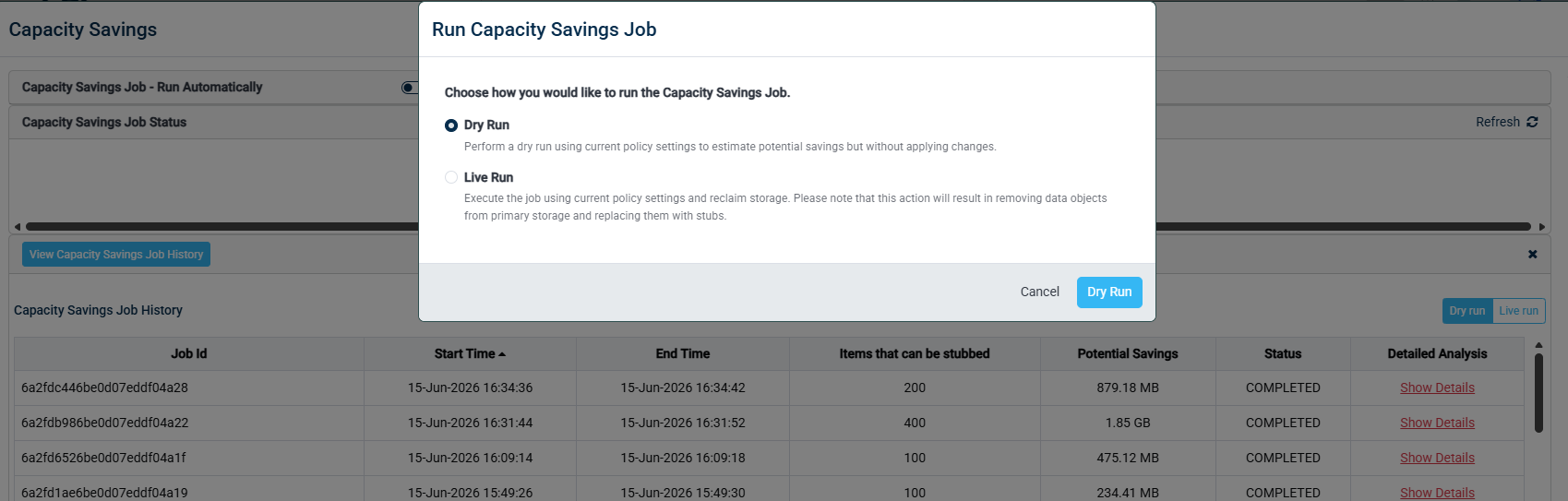
Analyze the Dry Run output and confirm that the results align with expected outcomes. If satisfied with the simulation, proceed to execution by selecting Live Run
Initiate Live Run to perform the actual archival process.
During Live Run process:
Eligible files are archived to the CrashPlan backup tier
Files in OneDrive are replaced with lightweight stub (.URL) files
Storage space is reclaimed
A confirmation dialog appears: “Please note that running this job will result in removing data objects from primary storage and replacing them with stubs.”
Monitor the execution status and verify completion within the portal. It is recorded in the Capacity Savings Job History table with a manual run indicator against the Job Id.
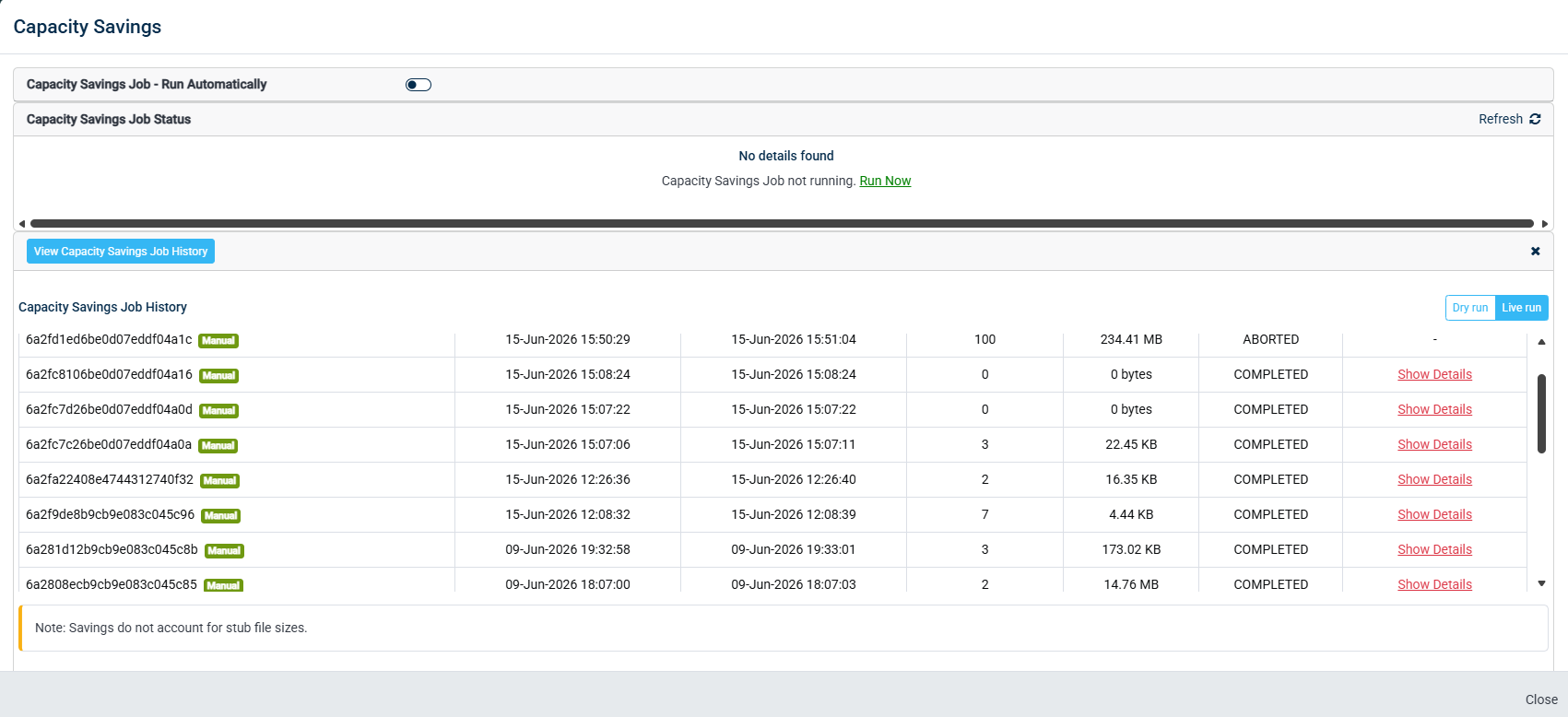
While a Job is Running:
Real-time job details such as Job Id, Start Time, Progress, and Savings are displayed
The Stop (Abort) Action becomes available to terminate the job.
Each Job includes Job Id, Manual/Scheduled tag, Live Run/Dry Run tag and Show Details link.
The note “Savings do not account for stub file sizes”, means that storage savings are calculated using the full size of the original files, without subtracting the negligible space used by the small stub files that replace them.