
The Capacity Savings dashboard and reporting features provide administrators with real-time visibility into storage optimization activities within OneDrive for Business, Exchange, and SharePoint. Administrators can monitor active Capacity Savings jobs, track execution progress, and review storage savings generated by storage optimization policies without navigating into individual workload screens.
OneDrive
These monitoring capabilities help support teams efficiently track long-running optimization jobs and validate storage reduction results.
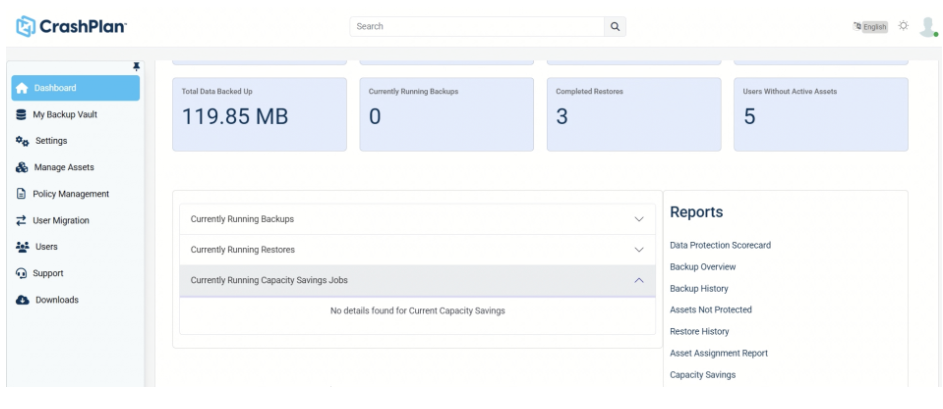
Navigate to: Dashboard → OneDrive for Business
Locate the section: Currently Running Capacity Savings Jobs
Review the following job details:
Job ID
Includes Job ID number
Indicates whether the job is:
Manual or Scheduled
Live Run or Dry Run
Start Time
Displays when the job execution started
Progress
Progress bar
Percentage completion
Savings
Displays current storage savings generated during execution
Monitor job activity in real time until execution completes.
If no Capacity Savings job is currently running, the following message is displayed:
“No details found for Current Capacity Savings"
Viewing Capacity Savings Reports for OneDrive
Navigate to: Dashboard → OneDrive for Business → Reports → Capacity Savings
Select the required filter:
OneDrive for Business Policy Name
Click View.
Review the displayed report details, including:
Asset-level storage savings
Total savings summary displayed at the top-left
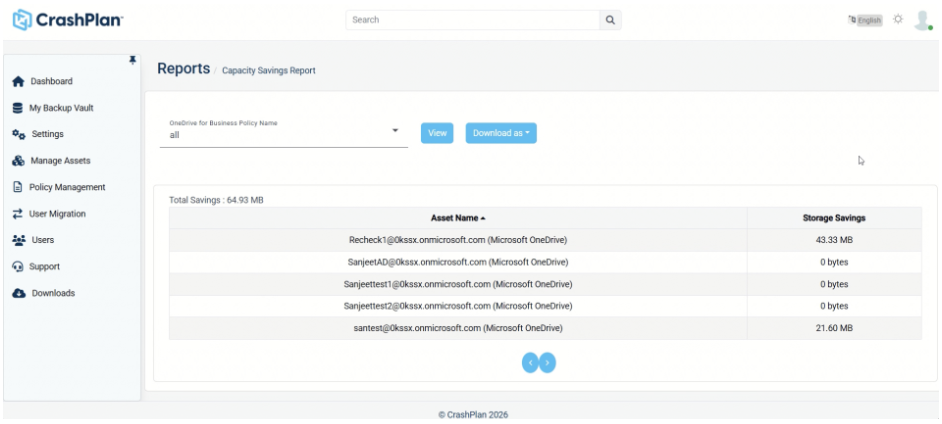
To export the report, select, Download as and choose one of the following formats:
Excel
PDF
SharePoint
This procedure explains how administrators can monitor live Capacity Savings activity and review storage savings reports for SharePoint Online.
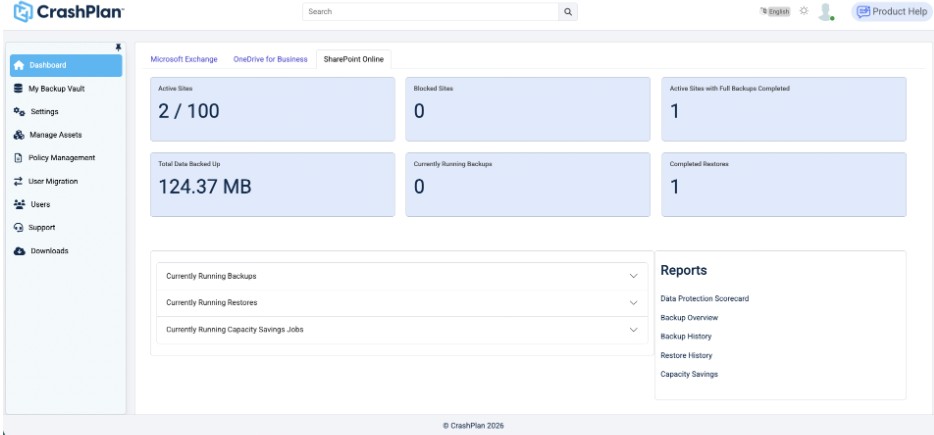
Navigate to: Dashboard → SharePoint Online → Currently Running Capacity Savings Jobs
Review the displayed job details for active Capacity Savings executions.
Available Monitoring Details
The dashboard displays the following information:
Job ID
Job identification number
Manual or Scheduled execution tag
Live Run or Dry Run tag
Start Time
Date and time the job execution started
Progress
Progress bar
Percentage completion
Savings
Current storage savings generated during execution
Monitor job progress and storage optimization activity in real time.
If no Capacity Savings jobs are currently running, the following message is displayed:
“No details found for Current Capacity Savings”
Viewing Capacity Savings Reports
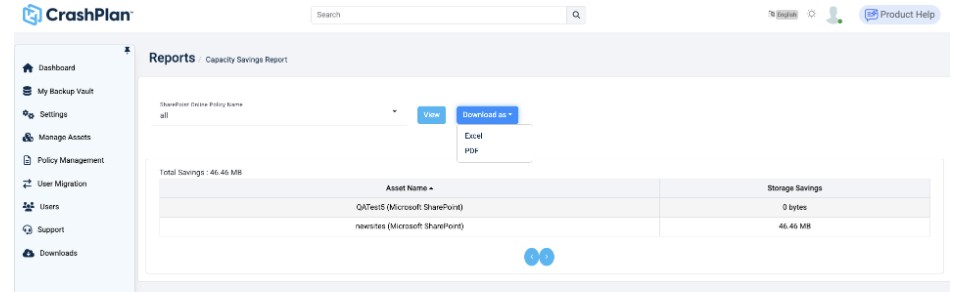
Navigate to: Dashboard → SharePoint Online → Reports → Capacity Savings
Select the required “SharePoint Online Policy Name”.
Click View.
Review the displayed report details, including:
Asset-level storage savings information
Total savings summary displayed at the top-left of the table
Exporting Capacity Savings Reports
In the report interface, click Download as.
Select one of the available export formats:
Excel
PDF
Save the exported report for auditing, analysis, or sharing purposes.
Microsoft Exchange
This procedure explains how administrators can monitor live Capacity Savings activity and review storage savings reports for Microsoft Exchange.
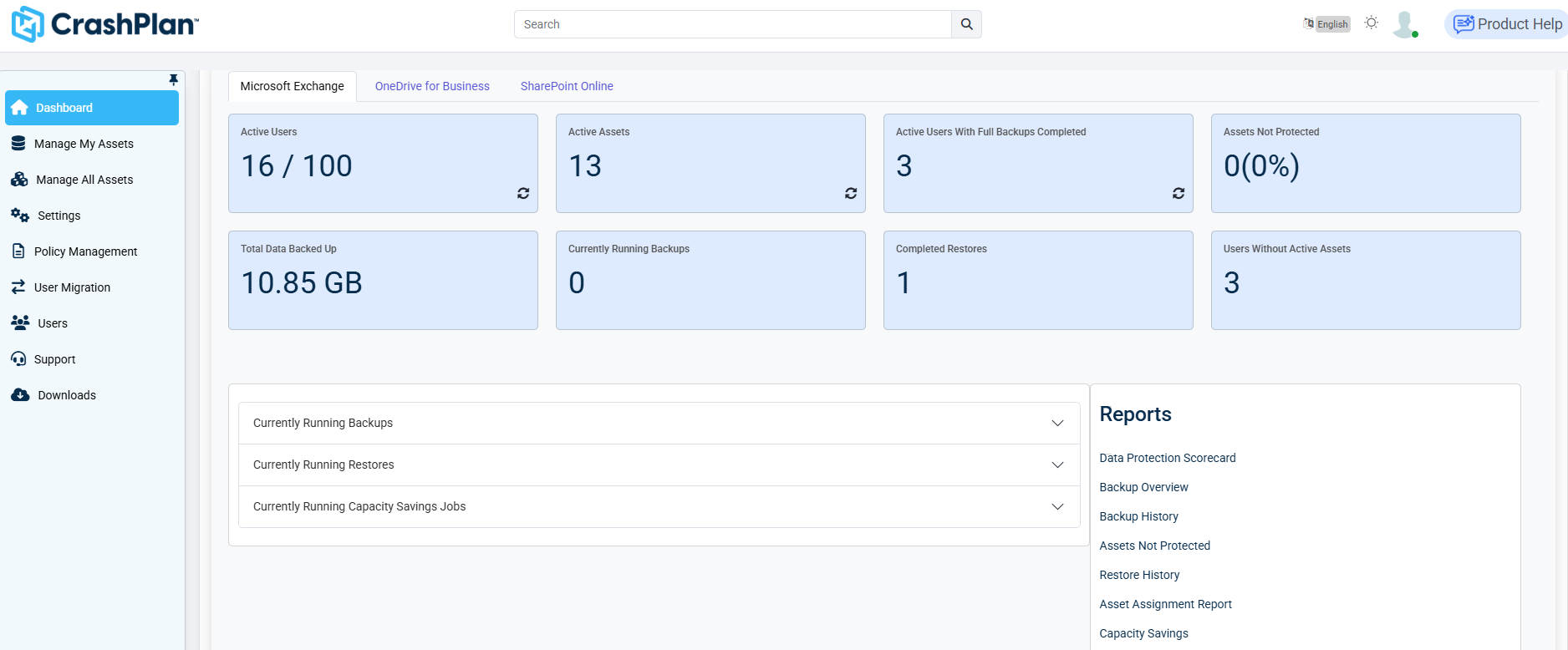
Navigate to: Dashboard → Microsoft Exchange → Currently Running Capacity Savings Jobs
Review the displayed job details for active Capacity Savings executions.
Available Monitoring Details
The dashboard displays the following information:
Job ID
Job identification number
Manual or Scheduled execution tag
Live Run or Dry Run tag
Start Time
Date and time the job execution started
Progress
Progress bar
Percentage completion
Savings
Current storage savings generated during execution
Monitor job progress and storage optimization activity in real time.
If no Capacity Savings jobs are currently running, the following message is displayed:
“No details found for Current Capacity Savings”
Viewing Capacity Savings Reports
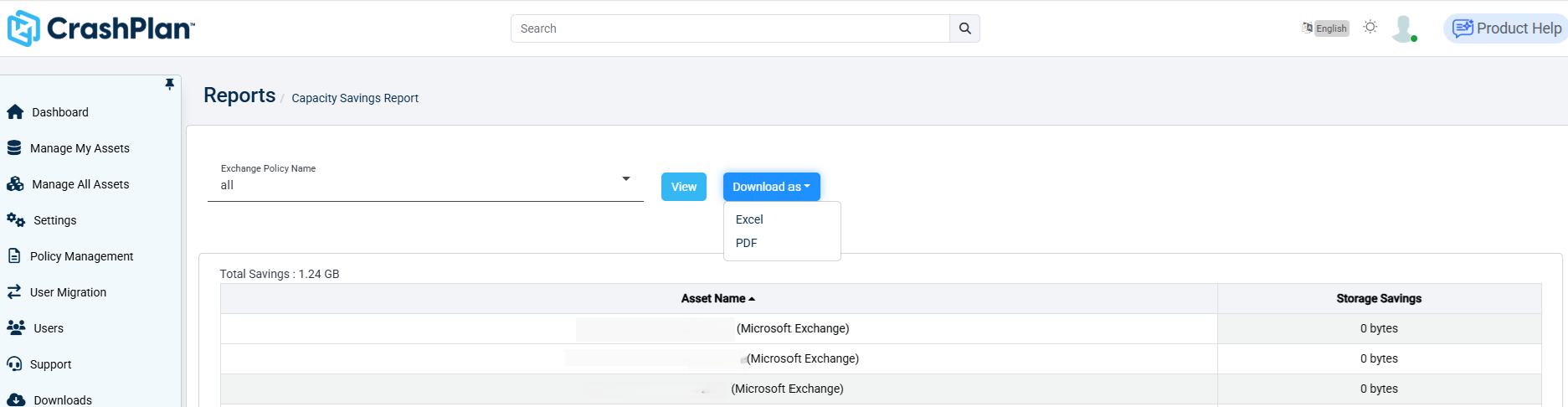
Navigate to: Dashboard → Microsoft Exchange → Reports → Capacity Savings
Select the required “Microsoft Exchange Policy Name”.
Click View.
Review the displayed report details, including:
Asset-level storage savings information
Total savings summary displayed at the top-left of the table
Exporting Capacity Savings Reports
In the report interface, click Download as.
Select one of the available export formats:
Excel
PDF
Save the exported report for auditing, analysis, or sharing purposes.