
Search
The Search field allows you to search for users, assets, files, folders, and other objects. When you click the search field, three tabs will appear:
Search Users/Assets
This tab allows you to search for specific users or assets.
Search by file/folder name
This tab allows you to search for particular files and folders by name, and has three configurable fields:
Product type: Choose between OneDrive for Business or SharePoint Online to limit your search to a specific product.
UserID: Limit search to a specific UserID. To search, you must input at least three characters of a given UserID.
Asset name: Limit search to a specified asset (such as an email account or mailbox).
Full text/search
This tab allows for a more granular search to quickly identify specific emails or data. It offers the same three fields as Search by file/folder name, but with the addition of several more specific fields.
From, To, CC, BCC, Subject, and Body: Find matching text in the respective fields of an email.
Keywords: Enter broad terms to search for areas they might appear throughout the email.
Date from: Search only within the specified date range.
User Profile
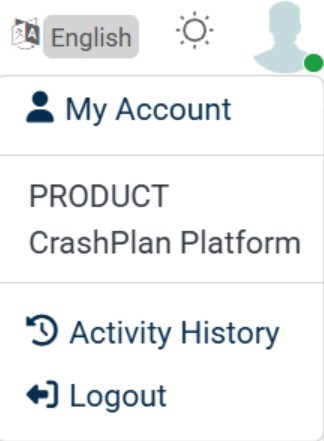
My Account
This page allows you to modify your user profile and password, as well as see storage, device, and access details.
Access Details
In the User profile -> My Account-> Access Details, the area indicates whether Exchange, SharePoint, and OneDrive backups are enabled for your user account.
My assets
This section displays two asset tiles - one for Microsoft Exchange, and one for Microsoft OneDrive (if they are enabled for your account as indicated in Access Details).
To view the assets for a particular tile, select the envelope or cloud icon to expand the chosen asset tile.
Last Successful Backup | The most recent date and time when the asset backup was completed successfully. |
|---|---|
Next Successful Backup | The next scheduled backup time and date for the asset. |
Asset Configured on | The date and time when the asset was first registered. |
Storage Media | Shows where the asset is stored (such as Azure Blob) |
You can view even more details by selecting the sub-menu icon in the upper-right corner of the asset tile, which will show the following details:
Reset your password
After entering your username and clicking Submit, you can click Reset My Password to have a link sent to your email address.
The link will bring you to a Password Reset page, where you’ll be prompted to enter a new password. When you’re done, click Submit.
Block Profile
In the CrashPlan platform, Block Profile in the Edit Profile section is typically used to restrict or disable a user profile from accessing or performing actions within the platform.
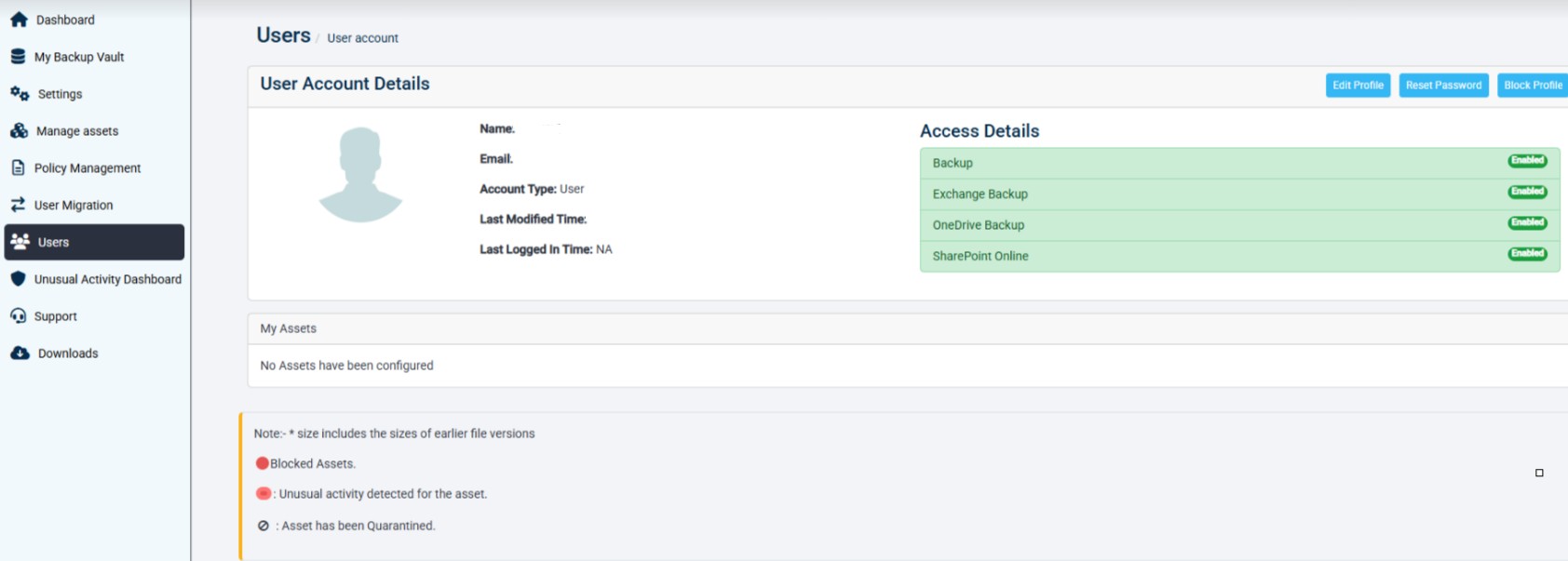
Blocked assets
Shows blocked assets, if any, highlighted in red.
Unusual activity detected for the asset
Shows unusual activity detected for the asset.
Unusual Activity Detection will be enabled only when anomaly detection is enabled at the license.
Asset has been Quarantined
The file, device, email, or data assets has been isolated by the system because it was identified as suspicious, infected, non-compliant, or potentially harmful. Quarantined assets are restricted from normal access or activity until they are reviewed, approved, cleaned, or restored by an administrator.
Edit Profile
In the User profile -> My Account-> Edit Profile, several options can be edited on this page. Fields marked with an asterisk are required. To confirm changes, click the Save button.
Basic Information
Account Status | Displays whether an account is active or inactive. |
|---|---|
Display Name | Indicates the user's name. |
Location | Indicates the user's location. |
Backup and Backup Policy Name | Indicates the Backup policy name. |
Department | Indicates the user's department |
Backup and Backup Target Assigned | Indicates the assigned backup target. |
Account type | Indicate if the account has administrator or user privileges. |
Email Address | The email address of the user. |
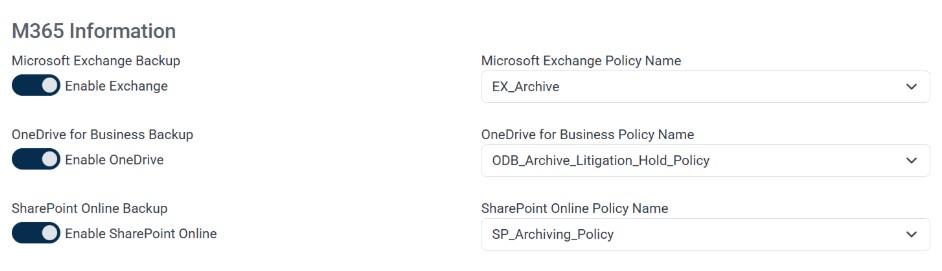
Microsoft 365 Information
For Microsoft Exchange, OneDrive, and SharePoint backups, the following options can be configured:
Enable Exchange/OneDrive/SharePoint
Select the checkbox to enable or disable backup for the specified asset.
Exchange/OneDrive/SharePoint Policy Name
Choose the desired policy for the specified asset.
Activity History
In the User Profile, clicking Activity History shows a time-stamped log of actions taken by users and administrators. Any significant user activity is logged, such as credential changes, sign-in and sign-out actions, report views, and much more.
The log is presented in chronological order with the most recent activity shown first. Activity details may include the following, depending on the activity logged:
Date and time
Action description
Email address
IP address
Domain name,
Operating system
To filter activity to a specific user, click on the username within the activity log.
Export Activity History to Excel
The User Profile → Activity History, in the upper-right corner, there is a button to export the activity history log to an Excel file. When clicked, you will be presented with a few options to tailor the output of the log file:
Get history for: Select Administrators, Users, or both.
User selection field: If desired, you can click the search box to select a specific user for the log. Only one specific user log may be generated at a time.
Date range: Choose the desired date range for the export.
Unusual Activity History
The User Profile → Unusual Activity History section in the CrashPlan platform provides a historical record of detected suspicious or abnormal activities across protected assets, users, or workloads. It helps administrators monitor potential security risks, ransomware behavior, excessive file changes, unauthorized access attempts, or other anomalous events detected by the platform.
Export Unusual Activity History to Excel
The User Profile → Unusual Activity History → Export Unusual Activity History to Excel option allows administrators to download the activity records in an Excel format for reporting, auditing, compliance tracking, offline analysis, or sharing with security and support teams.
Logout
The User Profile → Logout option securely signs the current user out of the CrashPlan platform, ending the active session and helping protect account access from unauthorized use.