
Follow these steps to access backup management options for an asset.
Navigate to Manage All Assets
From the CrashPlan console, select Manage All Assets from the left navigation menu.
Select an asset and locate the asset you want to manage.
Click Backup Management
Open the Backup Management window for the selected asset.
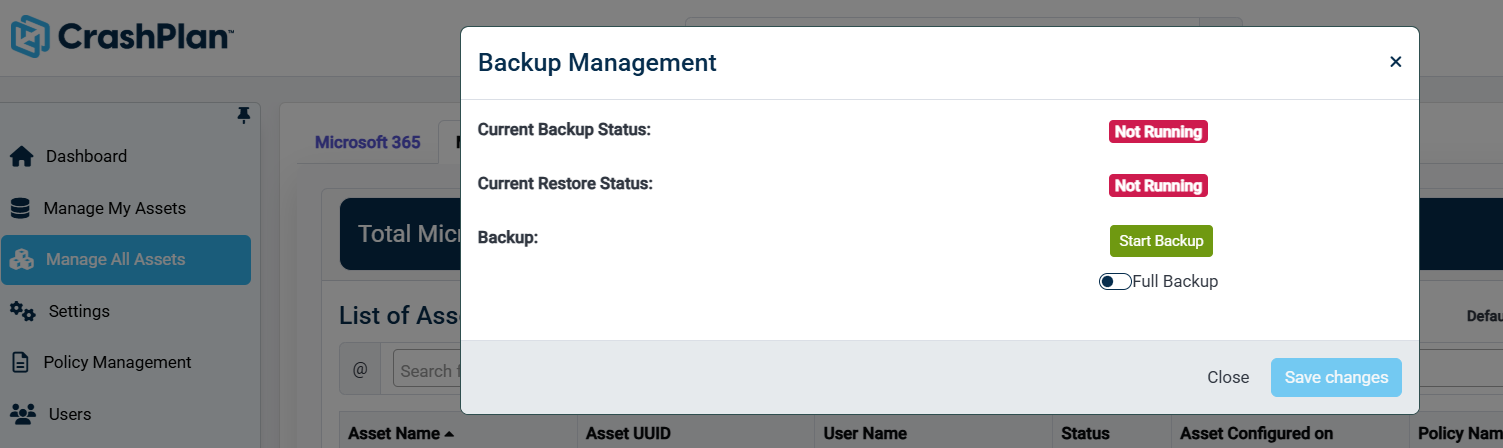
Review the backup status
Review the Current Backup Status and Current Restore Status.
Start a backup
Click Start Backup to initiate a backup operation.
Enable Full Backup (optional)
Enable the Full Backup toggle if you want to select the full backup option.
Save the changes.
Click Save changes to apply the configured backup settings.
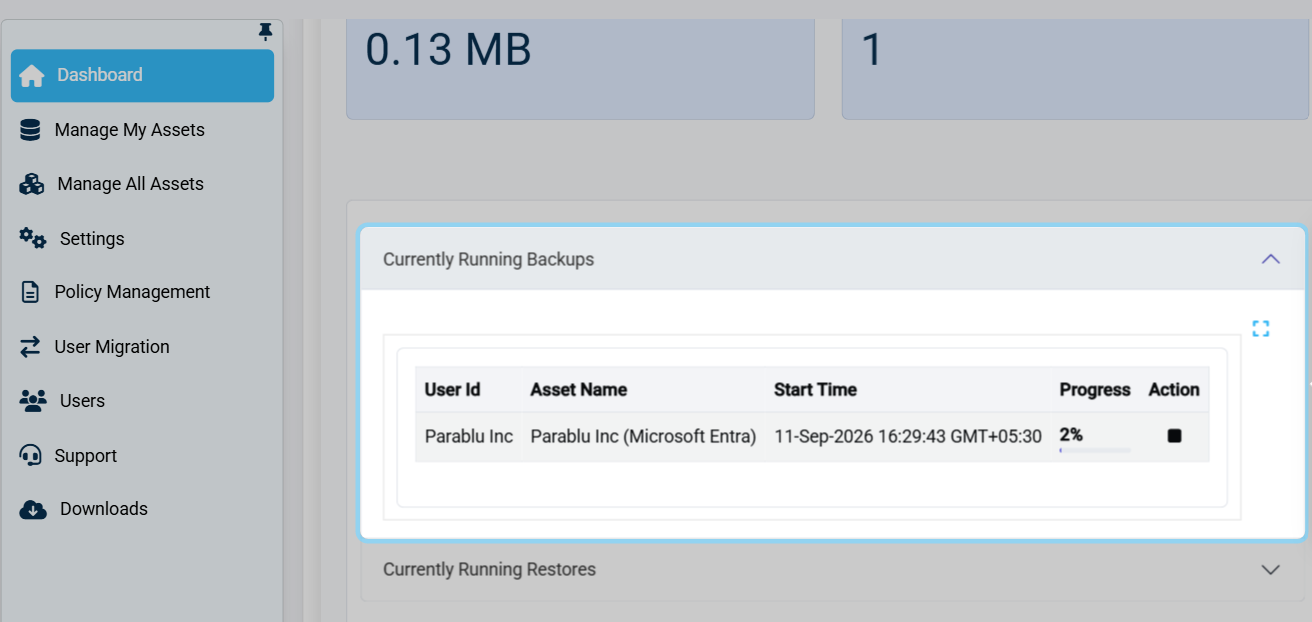
Navigate to the Dashboard and select the Microsoft Entra ID product tab. Expand Currently Running Backups to review the progress of the ongoing backup.
LIMITATIONS:
Entra secret/password values are not backed up.
Rotating secret keys will not be captured as readable backup data.
Non-secret metadata changes may still be captured where supported.