
Use the Manage All Assets page to view Microsoft Entra ID assets and perform actions such as managing the asset, managing backups, restoring data, and viewing backup activity.
In the CrashPlan console, go to Manage All Assets.
Select the Microsoft Entra ID tab.
The List of Assets displays the Microsoft Entra ID assets configured in your environment.
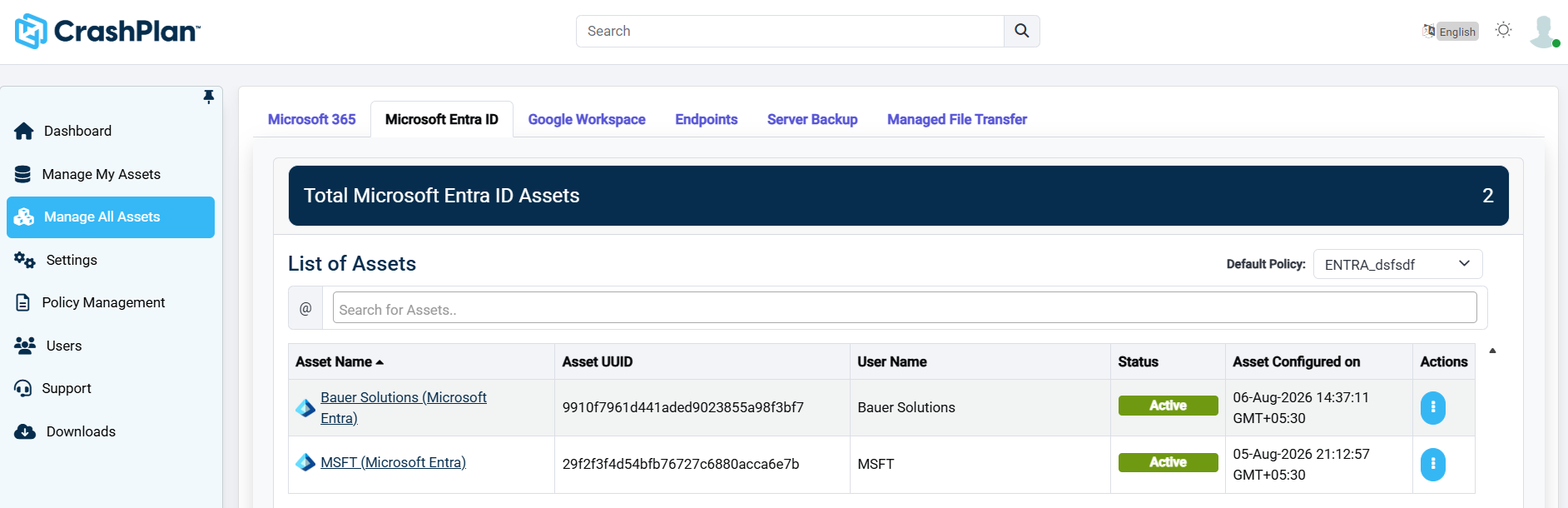
The following information is displayed:
Asset Name — Name of the Microsoft Entra ID asset.
Asset UUID — Unique identifier assigned to the asset.
User Name — User or account associated with the asset.
Status — Current status of the asset, such as Active.
Asset Configured on — Date and time when the asset was configured.
Actions — Available actions for the asset.
To locate a specific asset, enter its name in Search for Assets.
To perform an action on an asset, select the Actions icon (⋮) for the required asset.
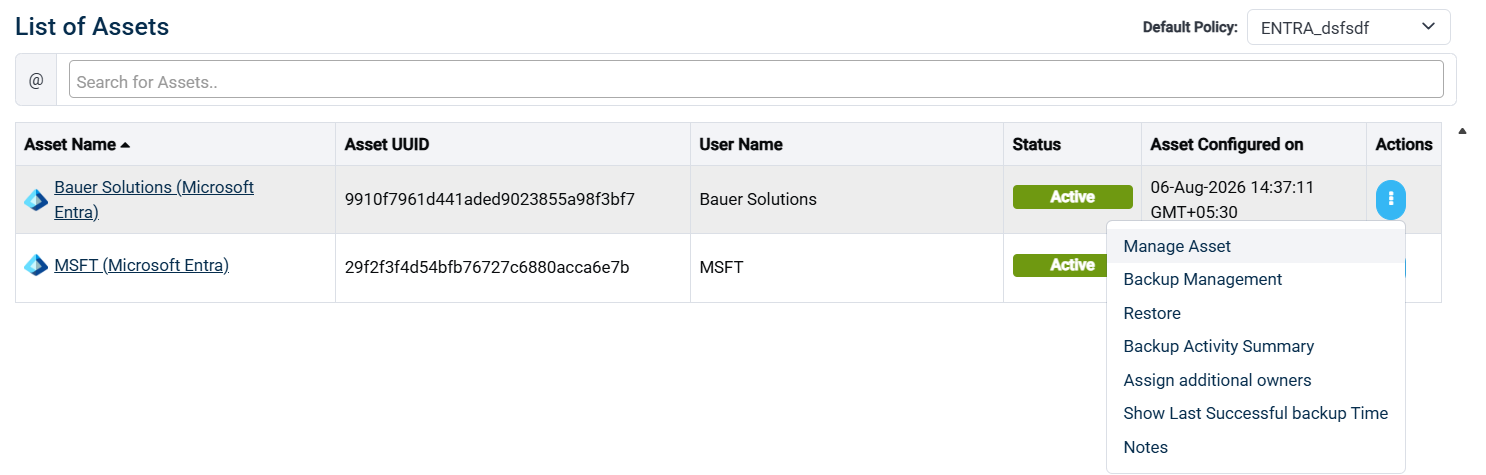
The following options are available:
Manage Asset — Manage the selected Microsoft Entra ID asset.
Backup Management — View or manage backup settings and operations for the asset.
Restore — Restore backed-up Microsoft Entra ID data.
Backup Activity Summary — View a summary of backup activity for the asset. Further, click on Show Details. Review the detailed backup analysis, including the timestamp, total number of files uploaded, total uploaded size, completion percentage, and current status with the associated reason.
Assign additional owners — Assign additional users as owners of the asset.
Show Last Successful Backup Time — View the most recent successful backup time.
Notes — View or add notes associated with the asset.
Select the required action to continue.
Default Policy
The Default Policy drop-down at the top of the List of Assets page displays the policy currently assigned as the default policy for Microsoft Entra ID assets. Select the drop-down to view or select another available policy, if applicable.
If the policy was created before administrative consent was granted and the default policy configuration was subsequently updated, the tenant asset will automatically inherit the correct default policy.
If the default policy was not updated from the staging policy, it can be changed at any time by clicking Change Policy and selecting the appropriate policy. With the correct policy assigned, the tenant is ready for protection.