
Follow these steps to restore an entire asset from the Manage All Assets page.
Navigate to Manage All Assets
From the CrashPlan console, select Manage All Assets from the left navigation menu.
Select the asset
Locate the asset you want to restore from the List of All Assets section.
Start the restore
Click Restore Entire Asset for the required asset.
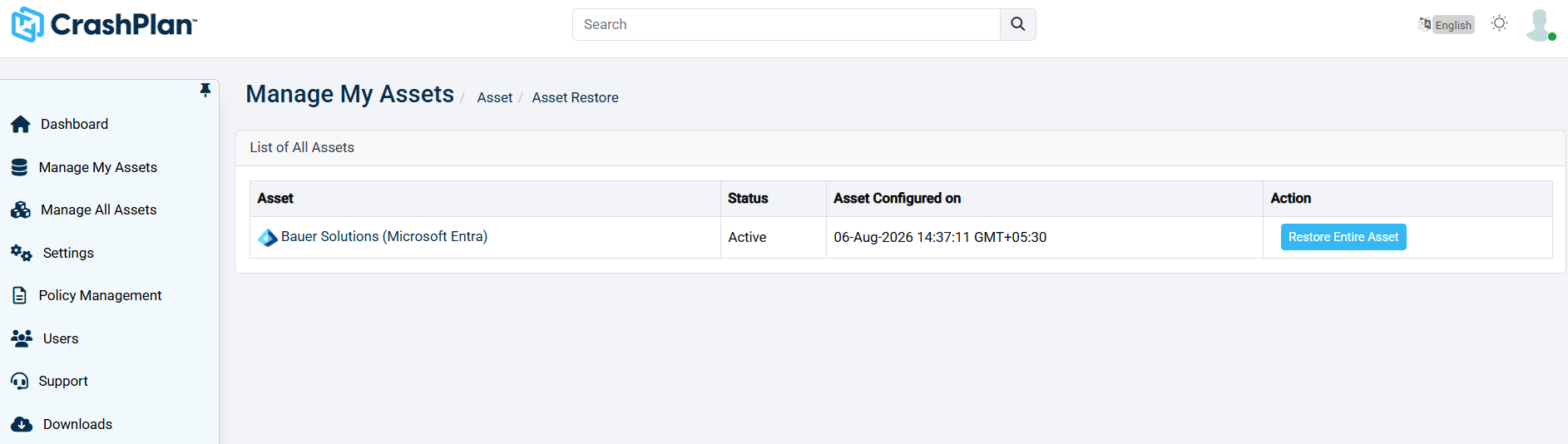
Review the restore options
Review the available restore settings and configure the required options.
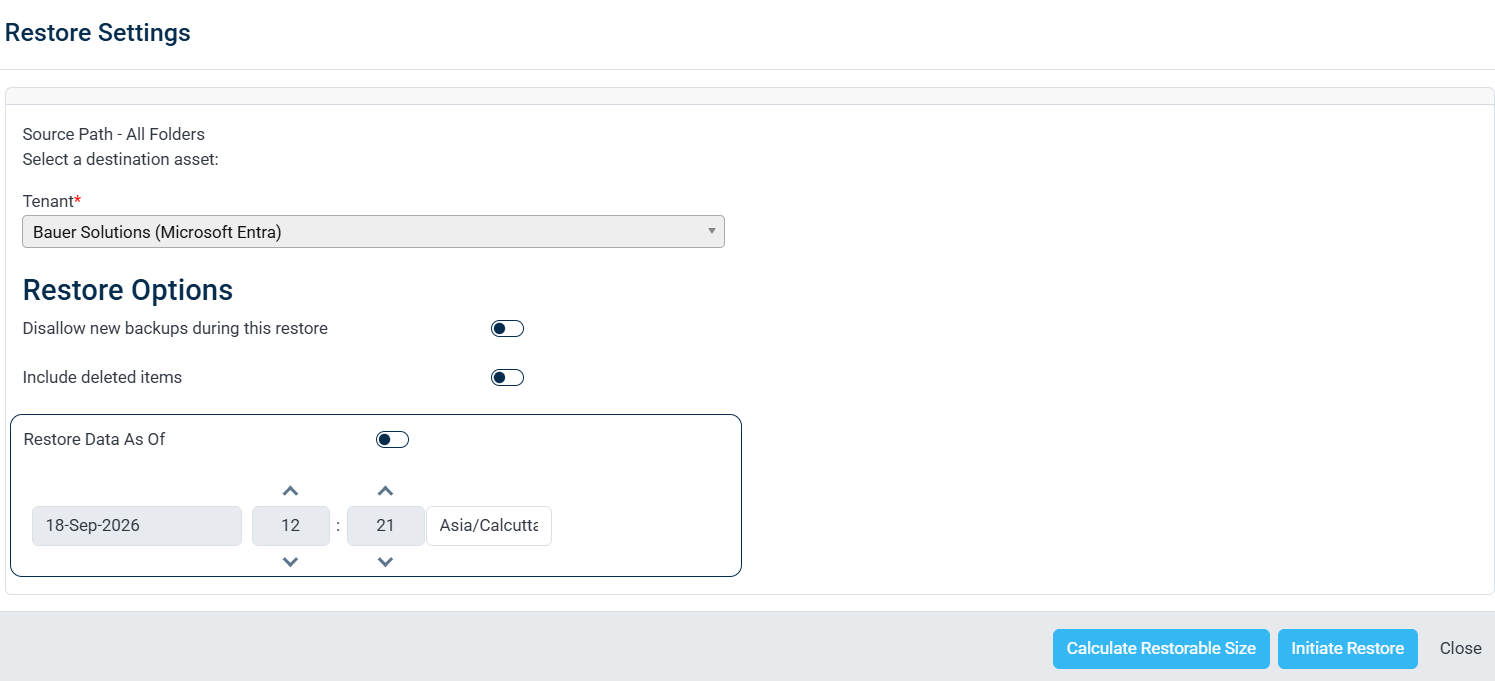
Complete the restore
Follow the on-screen instructions to initiate the restore operation by selecting your Tenant.
Restore an Enterprise Application
When restoring Microsoft Entra data in CrashPlan, App Registrations and Enterprise applications are related objects. An Enterprise Application depends on its associated App Registration; therefore, the related objects must be restored in the correct order.
To successfully restore an Enterprise Application:
Restore the associated App Registration first.
After the App Registration restore the associated Enterprise Application.
Do not restore the Enterprise Application before restoring its associated App Registration. The Enterprise Application depends on the App Registration and may not be restored successfully if the required App Registration does not exist in the Microsoft Entra tenant.
Restore order
App Registration → Enterprise Application
Following this sequence ensures that the required App Registration exists before CrashPlan attempts to restore the dependent Enterprise Application.