
The Policy Configuration section allows administrators to create, view, edit, or clone backup policies.
Navigate to the Policy Configuration section in the CrashPlan platform.
Perform one of the following actions:
Create a new backup policy.
View an existing policy.
Edit an existing policy.
Clone an existing policy to create a similar configuration.
Save the policy after completing the required changes.
Policy Mapping allows administrators to assign backup policies to users or assets.
Navigate to the Policy Mapping section.
Select the required users or assets.
Choose the appropriate backup policy.
Apply the policy mapping.
You can use Map Policies in Bulk option to assign policies to multiple users or assets simultaneously.
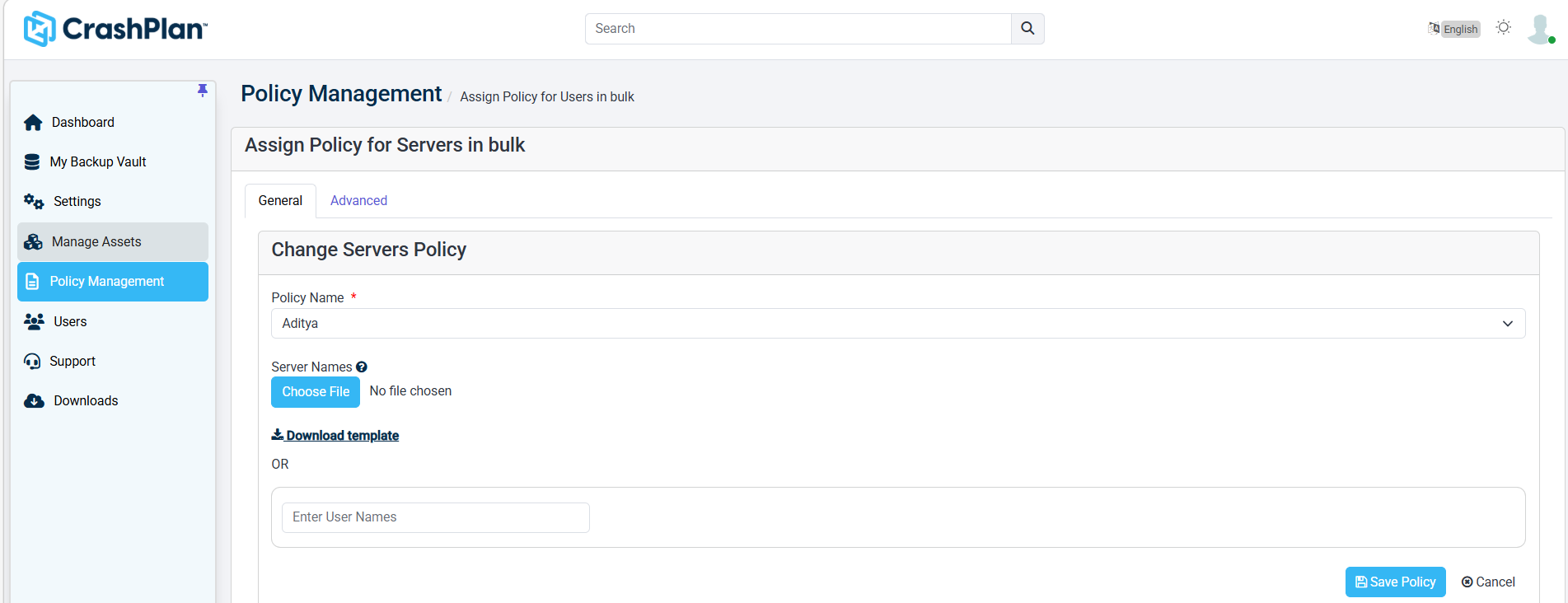
Log in to the CrashPlan Administration Portal using administrator credentials.
Navigate to Policy Management.
Click Map policies in bulk. The Assign Policy for Servers in bulk screen appears.
Assigning Policies using an Excel File
In the Change Servers Policy section, select the required Policy Name from the dropdown list.
Click Download template to download the Excel template.
Open the downloaded template file.
Enter the required server names in the template.
Save the completed Excel file.
Click Choose File under the Server Names section.
Browse and select the completed Excel file.
Verify the uploaded file details.
Click Save Policy to assign the selected policy to all listed servers.
Verify that the policy mapping is successfully completed.
Assigning Policies using Manual Entry
Select the required Policy Name from the dropdown list.
In the manual entry field, enter the required server names.
Add multiple server names as required.
Click Save Policy to apply the selected policy.
Verify that the policy is successfully assigned to the specified servers.
Cancelling Policy Assignment
Click Cancel to exit the screen without saving any changes.